
GitHub Issues
Forward ARMO security findings to GitHub Issues
The ARMO–GitHub Issues integration allows you to create and manage GitHub Issues from ARMO security findings. This helps security and engineering teams collaborate effectively by tracking remediation work directly in their existing GitHub workflows.
By enabling this integration, ARMO can create GitHub Issues for selected findings, enriched with context such as affected assets, risk details, attack information, and remediation guidance.
What This Integration Supports
The GitHub Issues integration supports:
- Automatically create GitHub issues from ARMO Platform
- Connect multiple GitHub organizations, with an allowlist of repositories where ARMO may create issues.
- Control which security issues are forwarded by scope category, and conditions
- Set native GitHub issue fields when creating a ticket: title, description, assignees, labels, and milestone
- GitHub issues automatically closewhen the related finding is resolved
Prerequisites
Before configuring the integration, make sure you have:
- You have an active GitHub account
- Permission to authorize the ARMO Platform GitHub App on your GitHub org
- Access to the GitHub organization and repositories you want to connect
- Admin or Manager role in ARMO to connect the integration and to create tickets.
Notes:
The ARMO Platform GitHub App installs on organizations only; installing on a personal GitHub account is not supported.
Only one ticketing provider can be integrated at a time, therefore when trying to integrate GitHub issues all other ticketing integrations (Jira or Linear) need to be disconnected
Step 1: Configure GitHub Issues Integration in ARMO
-
Log in to the ARMO Platform.
-
Go to Settings --> Integrations.
-
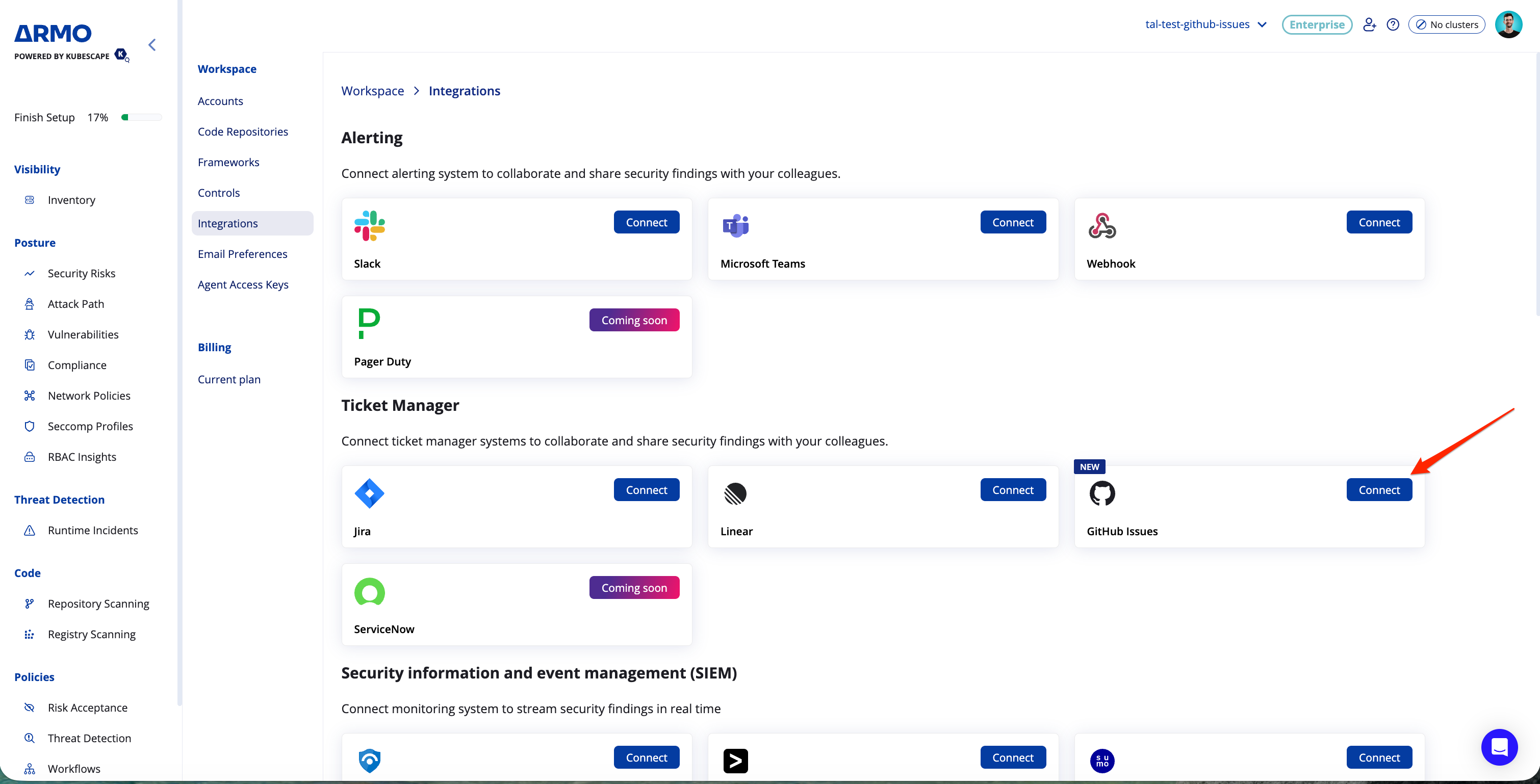
Under Ticket Manager, locate GitHub Issues.
-
Click Connect.
-
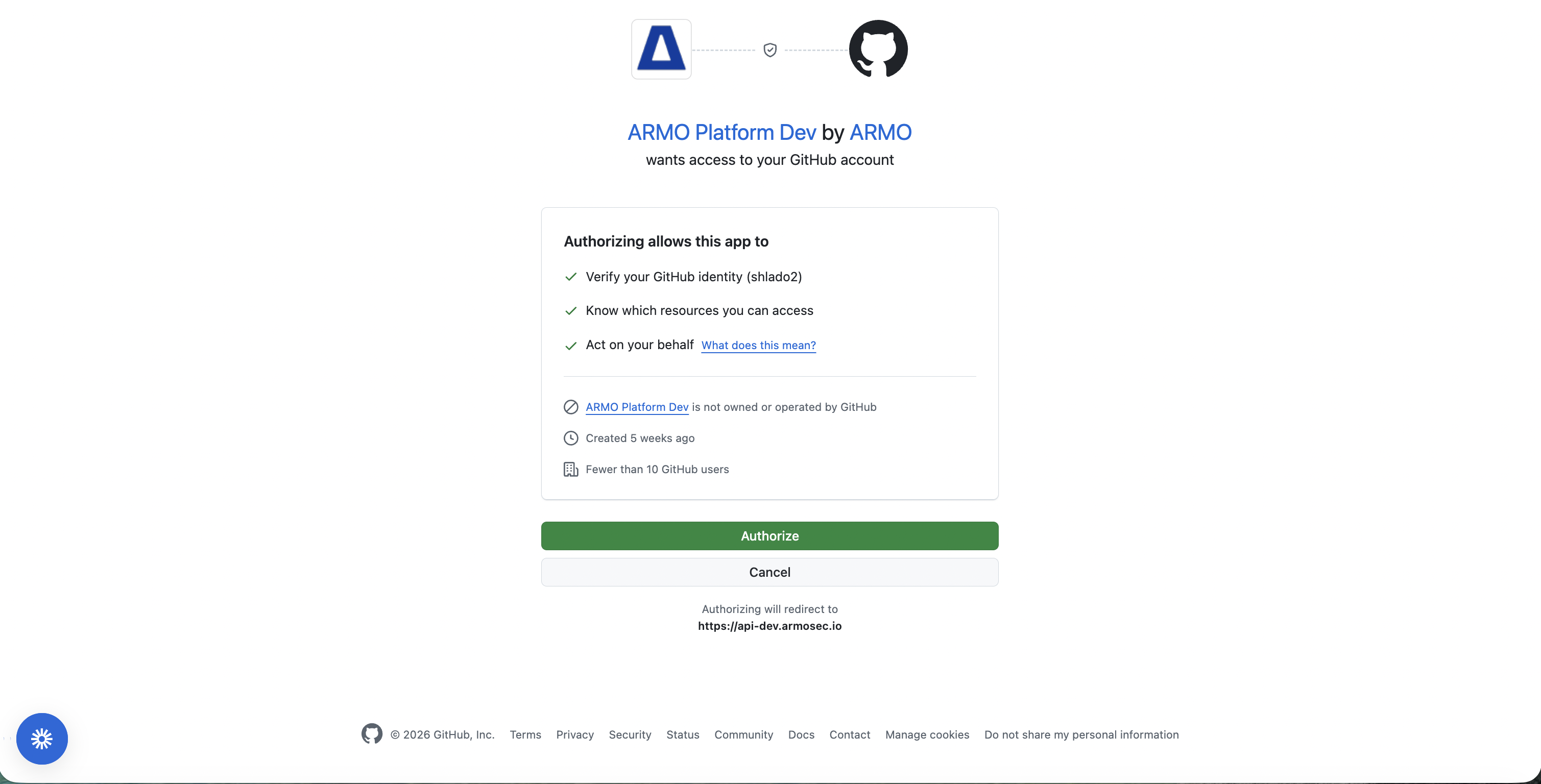
You will be redirected to GitHub to authorize the ARMO GitHub app.
-
Review the requested permissions and click Authorize.
-
After authorization, you will be redirected back to ARMO.
-
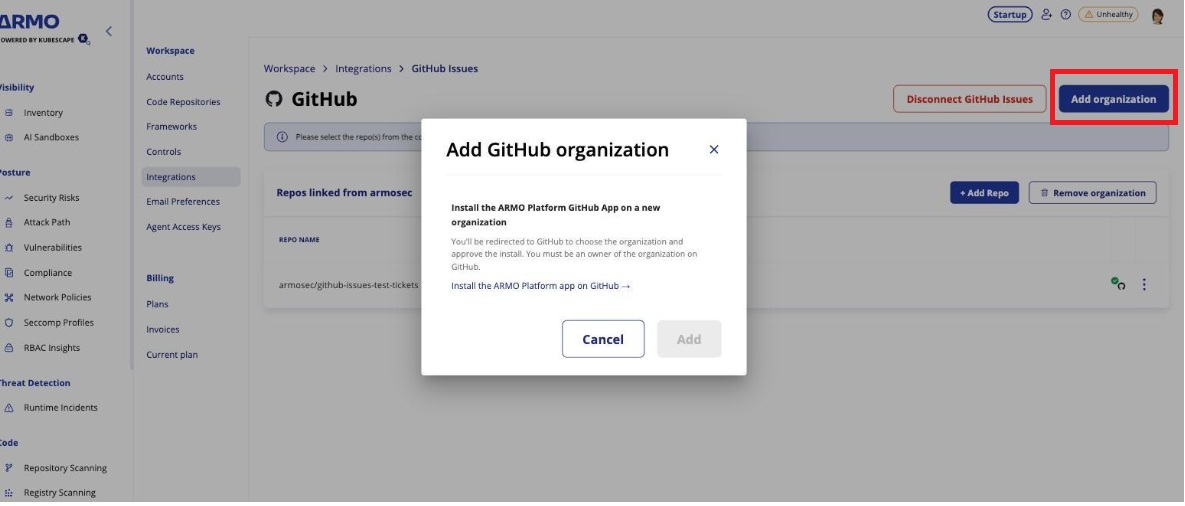
To connect additional organizations, click Add organization and select from the installations you have access to.
-
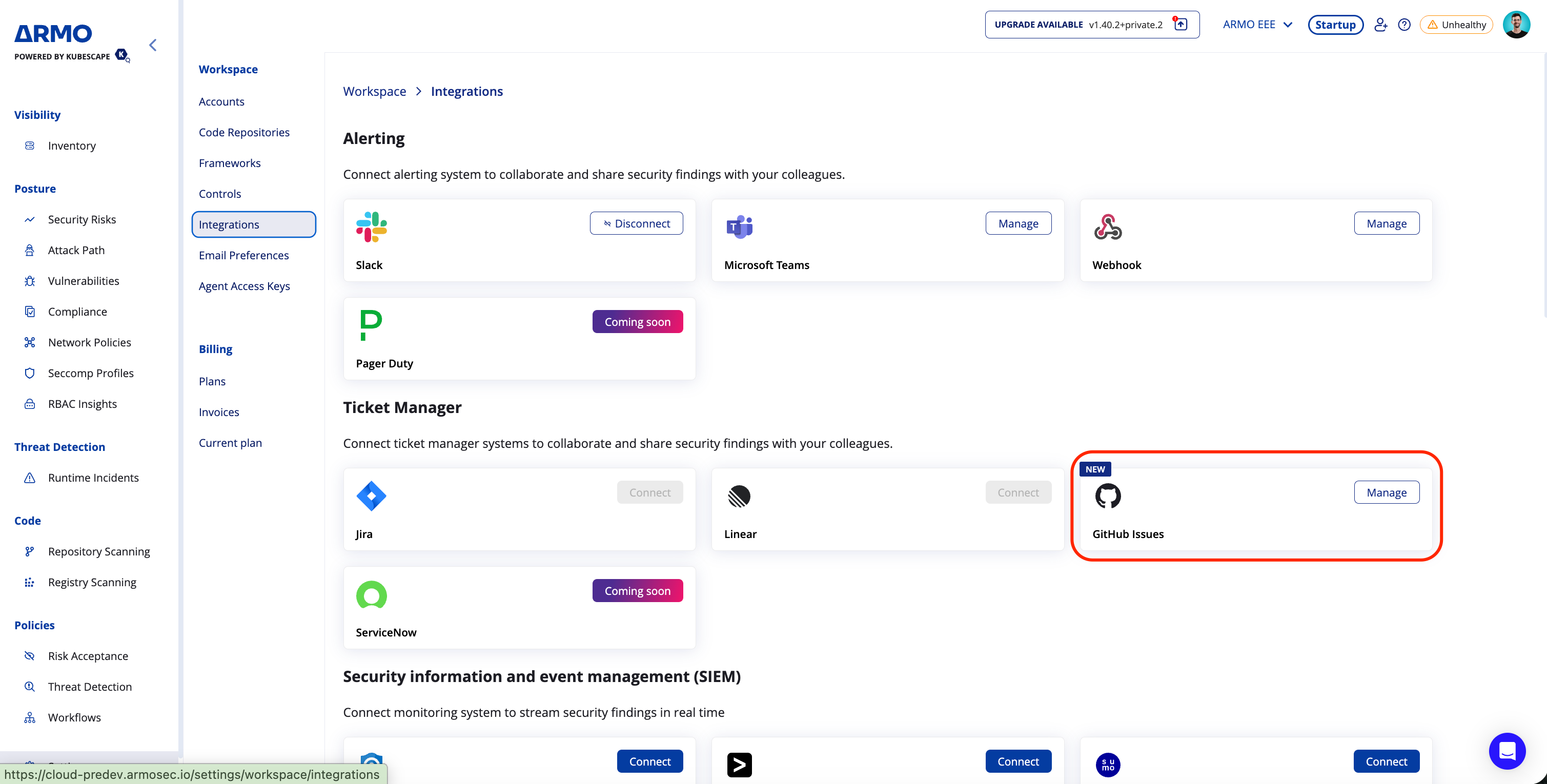
The GitHub Issues integration card will now show Manage.
Step 2: Add Repositories
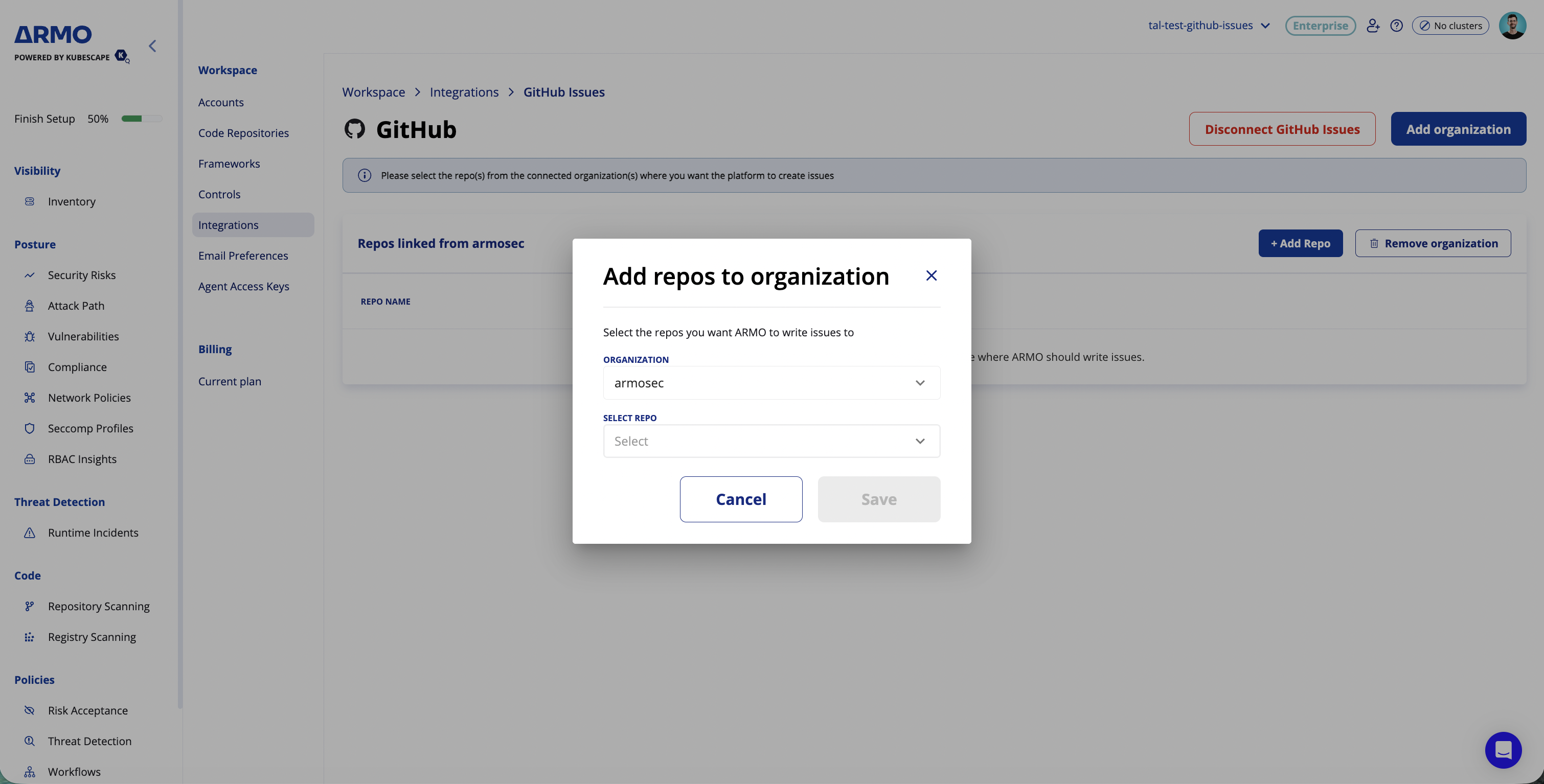
After connecting GitHub Issues, select the repositories where ARMO should be able to create issues.
-
In the GitHub Issues integration page, click Manage.
-
The page shows the repositories currently linked from your GitHub organization.
-
Click + Add Repo.
-
In the Add repos to organization dialog, select the repositories where ARMO should be able to create issues.
-
Click Save.
Step 3: Create a GitHub Issue
After the GitHub Issues integration is configured, you can create a GitHub Issue from supported ARMO findings across the platform, including Security Risks, Misconfigurations, Vulnerabilities, and Runtime Incidents.
To create a GitHub Issue:
-
Go to the relevant finding page.
-
Locate the finding you want to create an issue for.
-
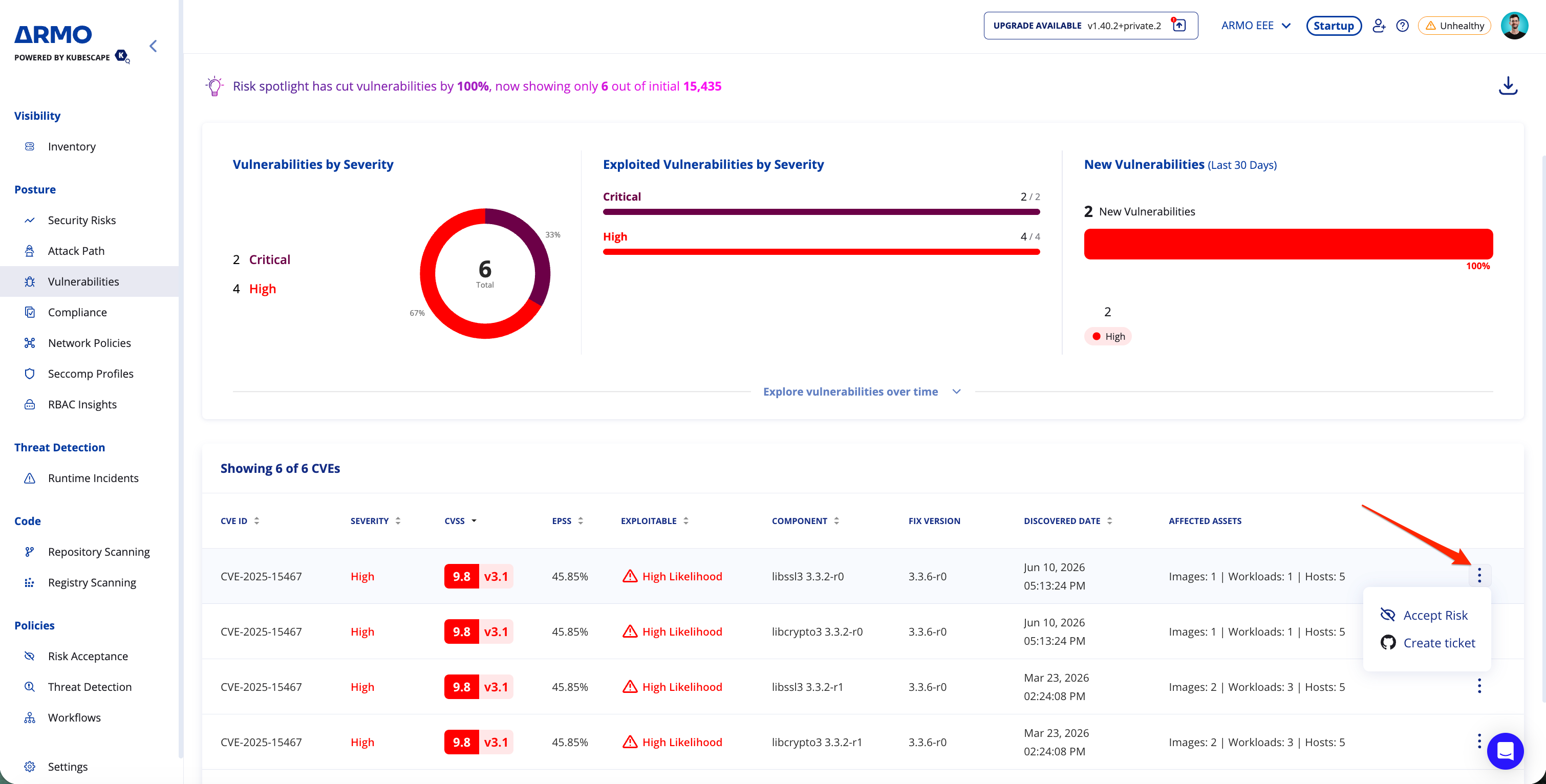
Click the 3-dot menu.
-
Click Create ticket.
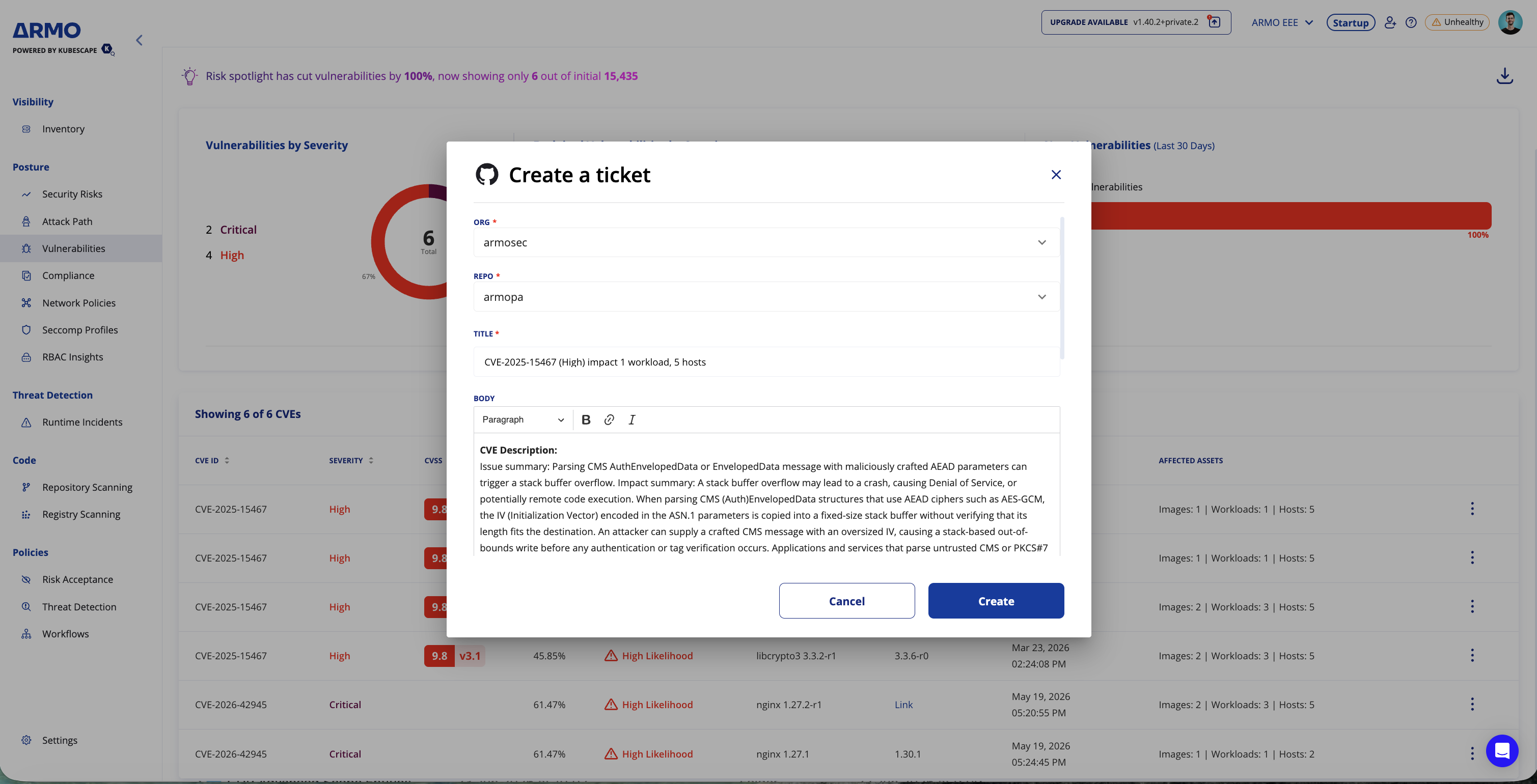
When you click Create ticket, a GitHub Issue "Create a ticket" dialog appears. The form includes the details of the ARMO Platform finding, which are pre-populated into the associated fields, including title, details from the ARMO finding and a link back to the ARMO Platform.
- Select the GitHub Organization and Repository to which you want to send the issue.
- Review the pre-filled title and description.
- Set assignees, labels, and/or a milestone (optional)
- Click Create.
GitHub Issue Indicator
Findings that have a linked GitHub issue show a GitHub indicator on the right hand side next to the three dots. Hover over it to see the linked issue and click through to open it in GitHub.
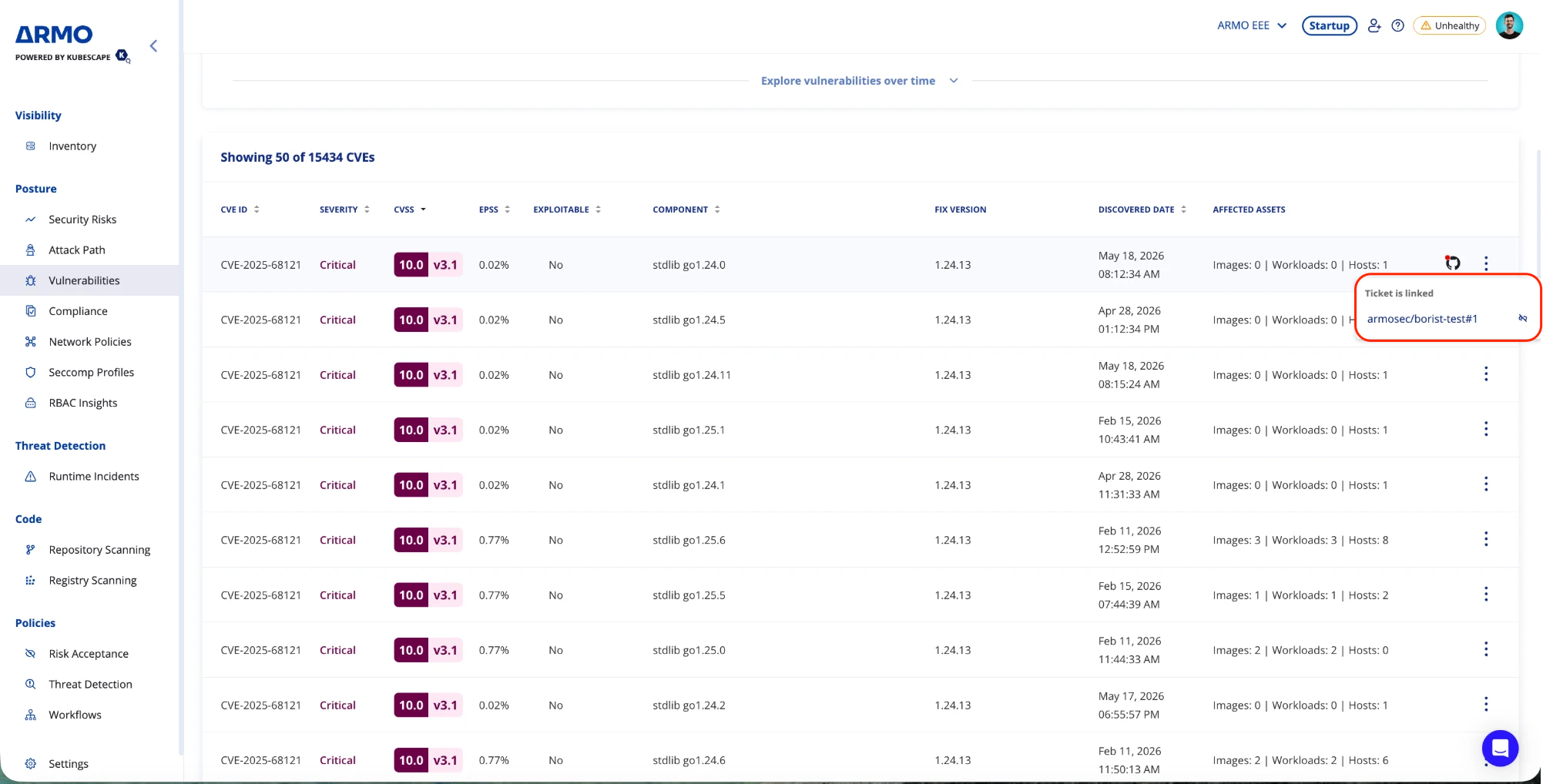
If you want to unlink a GitHub Issue from an ARMO finding, open the ticket indicator and click Unlink.
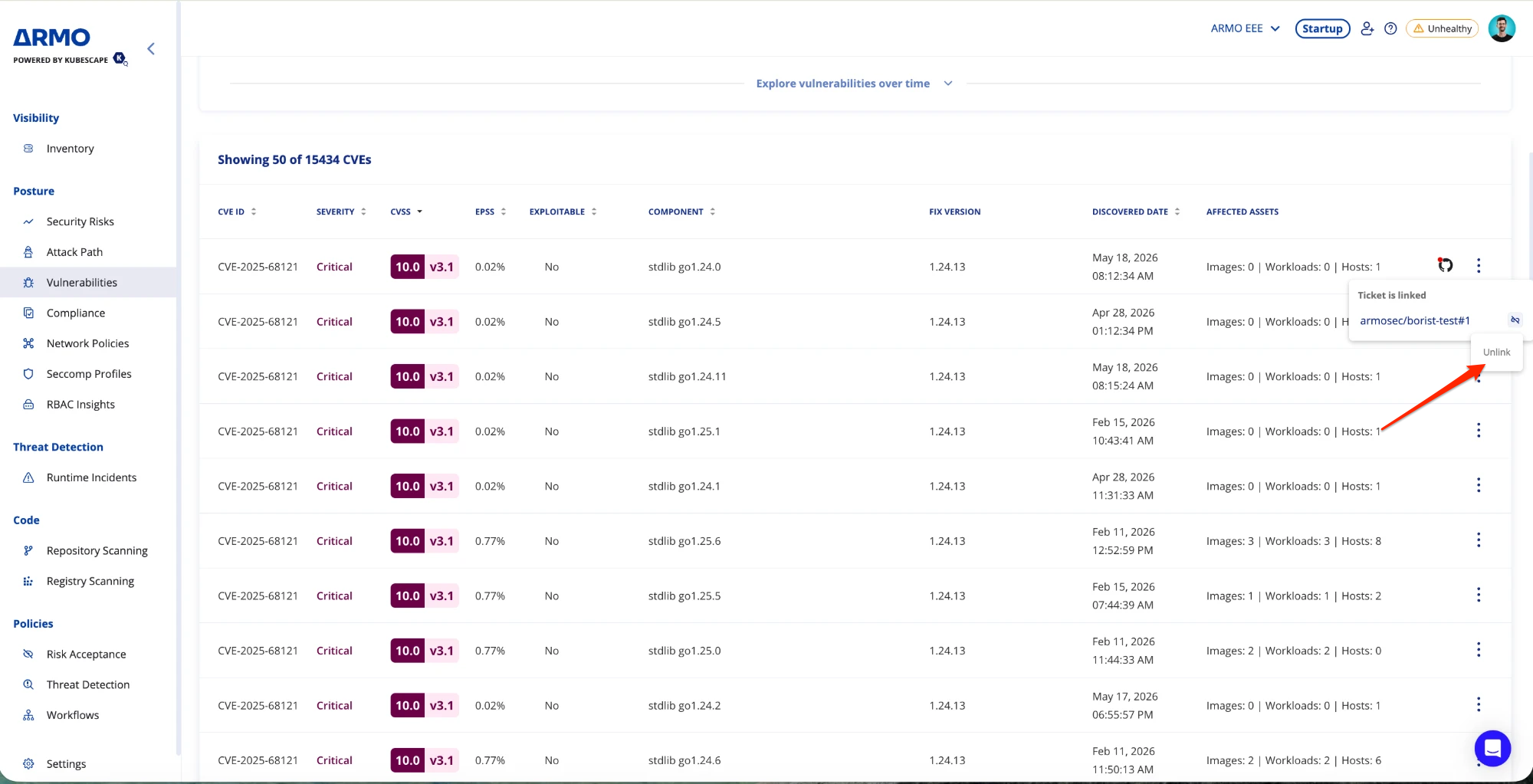
Note: Unlinking only removes the link in ARMO; it does not close, delete or modify the issue in GitHub.
Automatically Close GitHub Issues When Findings are Resolved
Overview
Auto-close keeps GitHub Issues aligned with the current state of findings in ARMO.
When a finding is resolved or no longer detected in ARMO, the corresponding GitHub Issue can be automatically closed, keeping your GitHub backlog in sync with your security posture and focused on active findings that still require attention.
How it works
When ARMO detects that a previously open finding (such as a vulnerability or misconfiguration) is no longer active, it automatically checks whether the finding has a linked GitHub Issue. If automatic closure is enabled for the repository, ARMO closes the corresponding GitHub Issue (closed as completed) and adds a comment explaining that the issue was resolved in ARMO.
If the same finding reappears later, ARMO creates a new GitHub Issue instead of reopening the previously closed one, ensuring a clean separation between historical and current issues.
Configuration steps
-
Go to Settings -- > Integrations.
-
Open the GitHub Issues integration settings.
-
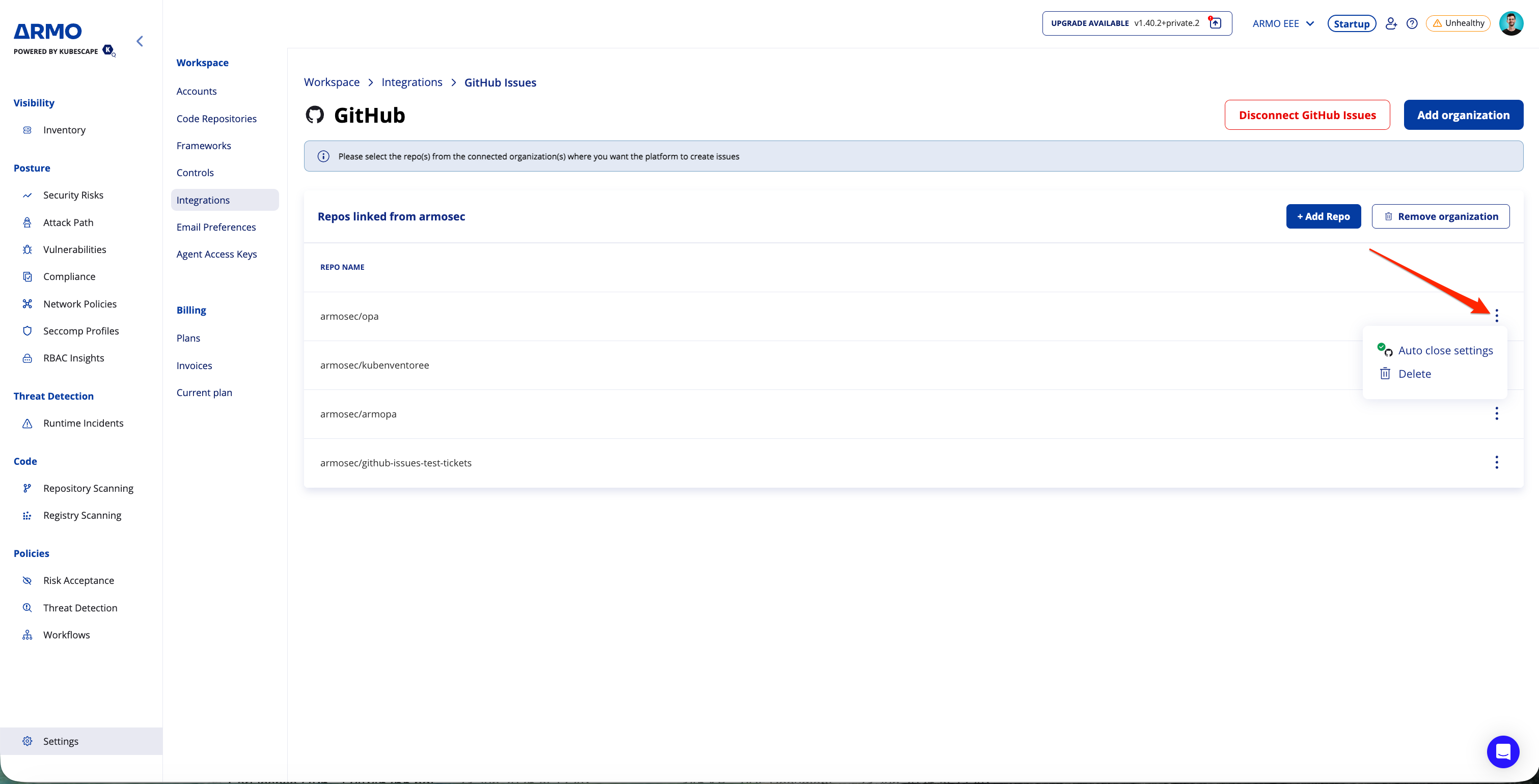
In the repositories table, open the row options for the repository and locate the relevant repository
-
Click the 3-dot menu next to the repository.
-
Click Auto close settings.
-
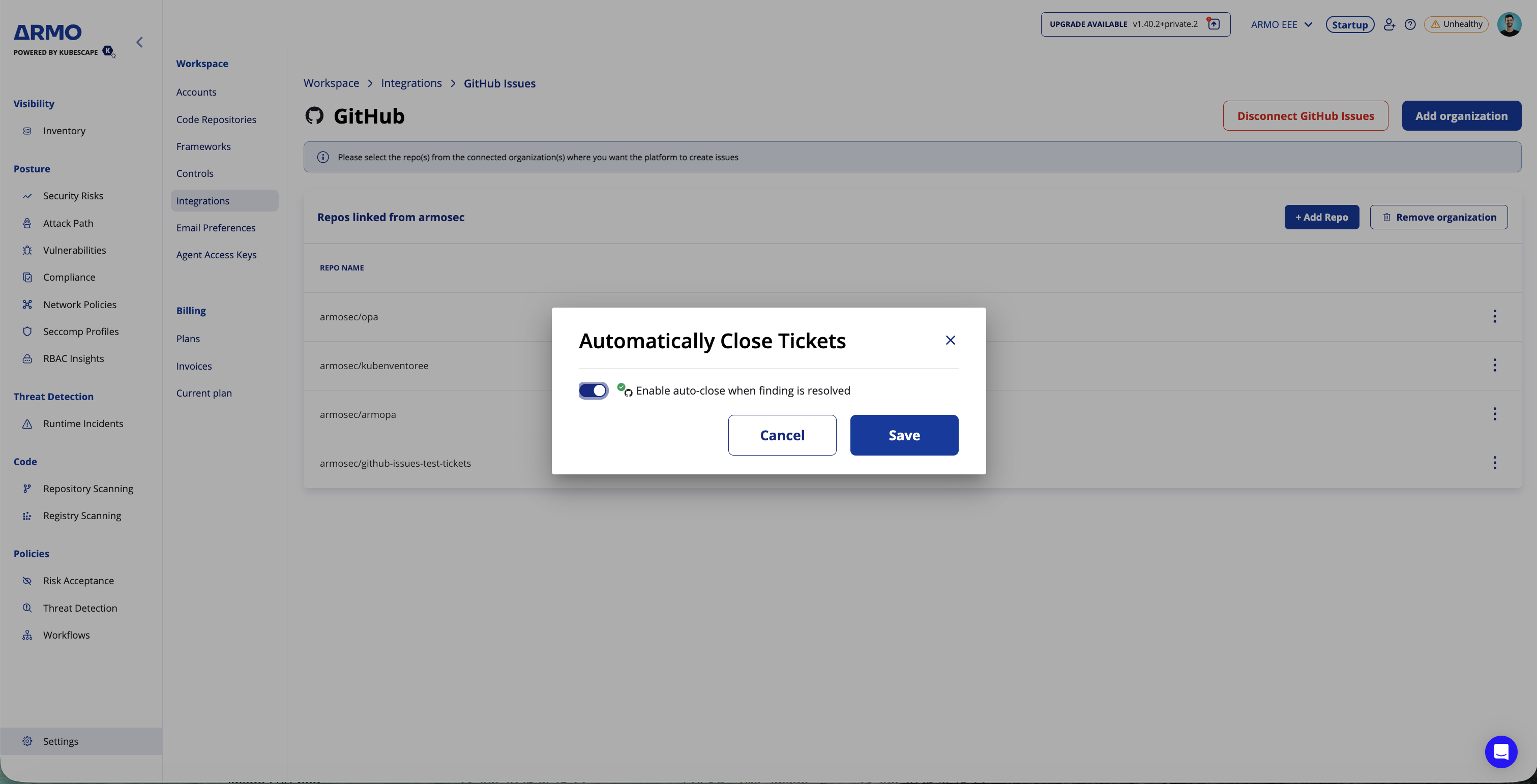
An Automatically Close Tickets dialog will pop up - Toggle the Enable auto-close when finding is resolved.
-
Click Save.
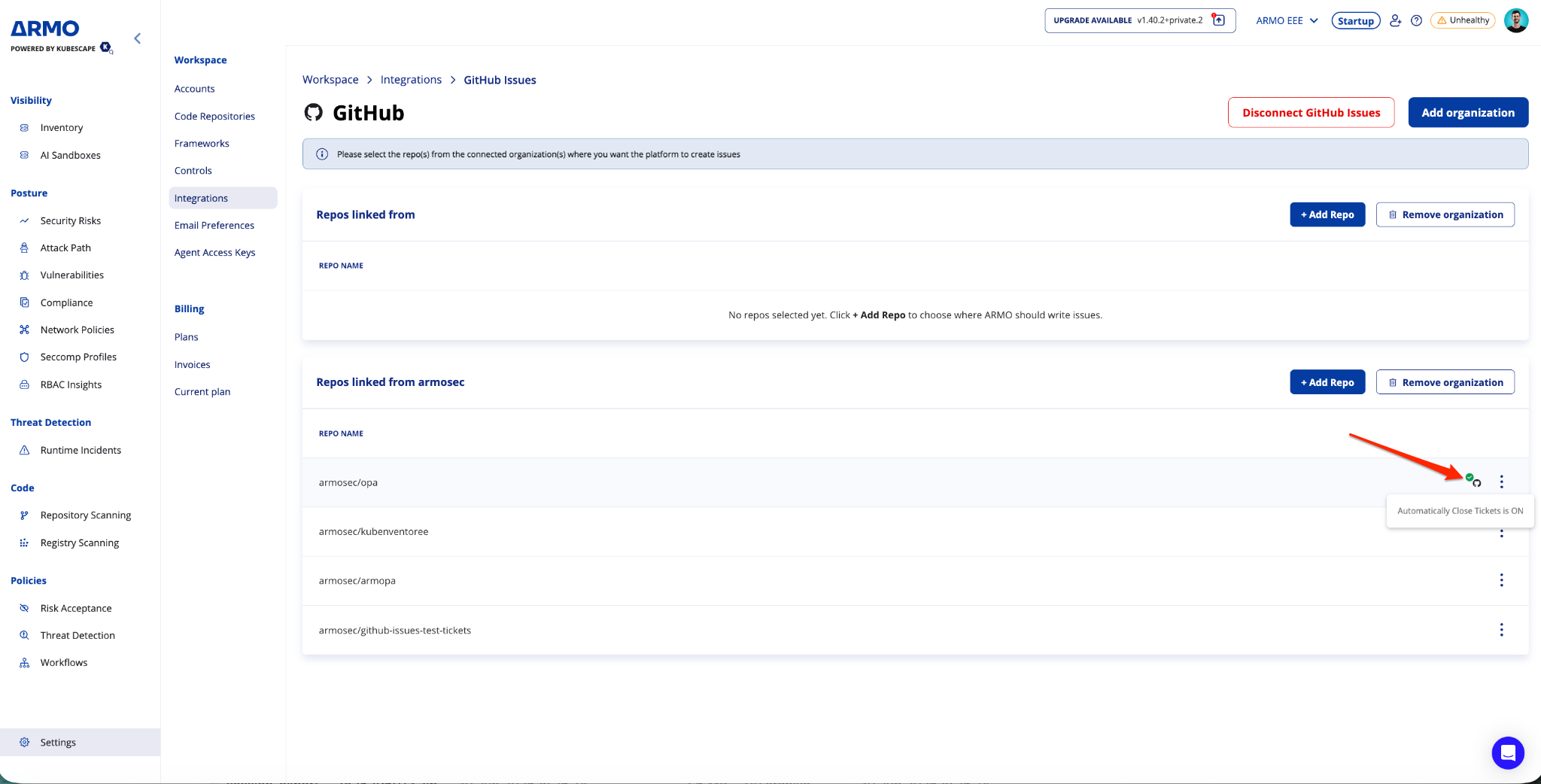
After auto-close is enabled, a green indicator appears next to the repository. Hover over it to confirm that automatic ticket closure is turned on.
Note: If auto-close is disabled for the repository, the issue is left open and only the link in ARMO is cleaned up when the finding disappears.
Behavior Details
| Scenario | Expected behavior |
|---|---|
| Finding resolved/no longer detected in ARMO | The linked GitHub issue is closed automatically (closed as completed) and a comment is added. |
| GitHub Issue manually closed | No further action is taken by ARMO. |
| Finding reappears in ARMO | A new GitHub Issue is created. The previous issue remains closed. |
| Auto-close disabled | No automatic updates are made to the GitHub Issue. |
| Repository is removed from the integration | ARMO stops managing issues in that repository; existing issues are left as they are |
Key Benefits
- Save Time: Reduce manual ticket creation and closure.
- Improve Accuracy: Keep GitHub Issues aligned with ARMO findings' current state.
- Reduce Noise: Keep your GitHub backlog focused on active findings.
- Improve Traceability: Track remediation work from ARMO to GitHub.
- Simplify Workflows: Manage remediation directly in the tools your engineering teams already use.
Notes
- Auto-closure applies only to GitHub Issues that originated from ARMO.
- Auto-close is configured independently for each repository.
- Unlinking a GitHub Issue from ARMO does not modify the issue in GitHub.
- Disconnecting the integration in ARMO does not uninstall the ARMO Platform GitHub App from your organization. To remove it completely, uninstall it from your organization's GitHub settings (Settings > GitHub Apps).
Updated about 2 months ago