
Runtime Incidents
Overview
In certain cases, you may want to suppress specific runtime incidents, especially when they involve known tools, benign processes, or trusted behaviors that are common in your environment.
The Risk Acceptance feature allows you to suppress such incidents by creating targeted suppression rules from existing incidents.
Risk acceptance rules are defined using a combination of scope and advanced scope entities:
Scope determines where the rule applies
Advanced scope Entities determine which runtime behavior must match
This allows you to control both how broadly the rule is applied and how precisely incidents are matched.
Scope of Accepted risk
Scopes are defined dynamically using Type-Value pairs. The following examples illustrate how different scope configurations affect risk acceptance behavior:
| Type | Value Description | Behavior |
|---|---|---|
| Provider | Cloud provider | Suppresses matching alerts across all accounts and resources for the selected providerApplies to all accounts and resources within the provider (broadest scope) |
| Account | Cloud account | Suppresses matching alerts across all regions and resources in the selected account |
| Region | Cloud region | Suppresses matching alerts across all clusters and resources in the selected region |
| Host | Host name | Suppresses matching alerts from the selected host |
| Cluster | Cluster name | Suppresses matching alerts from the selected cluster |
| Namespace | Namespace name | Suppresses matching alerts from the selected namespace |
| Workload | Workload name | Suppresses matching alerts only for the selected workload |
Scope Configuration
Each scope is built from one or more Type–Value pairs, based on the context of the selected incident.
When opening the Accept Risk window, a default scope is automatically generated from the incident. This ensures that, by default, the risk acceptance applies only to the affected resource.
To define an additional scope, click the + button and select Add Scope.
You can broaden the scope by removing lower-level types. For example, removing Workload applies the risk acceptance to all workloads in the selected namespace, and removing Namespace applies it to the entire cluster.
To apply risk acceptance to multiple values, create additional scopes. Each scope represents a separate scope path, and multiple scopes are evaluated using OR logic.
Scopes follow the incident context and may use different hierarchy paths.
For cloud runtime incidents, the scope path is:
Provider → Account → Region → Host
For Kubernetes runtime incidents, the scope path is:
Provider → Account → Region → Cluster → Namespace → Workload
Selecting a higher-level type includes all underlying resources in that path.
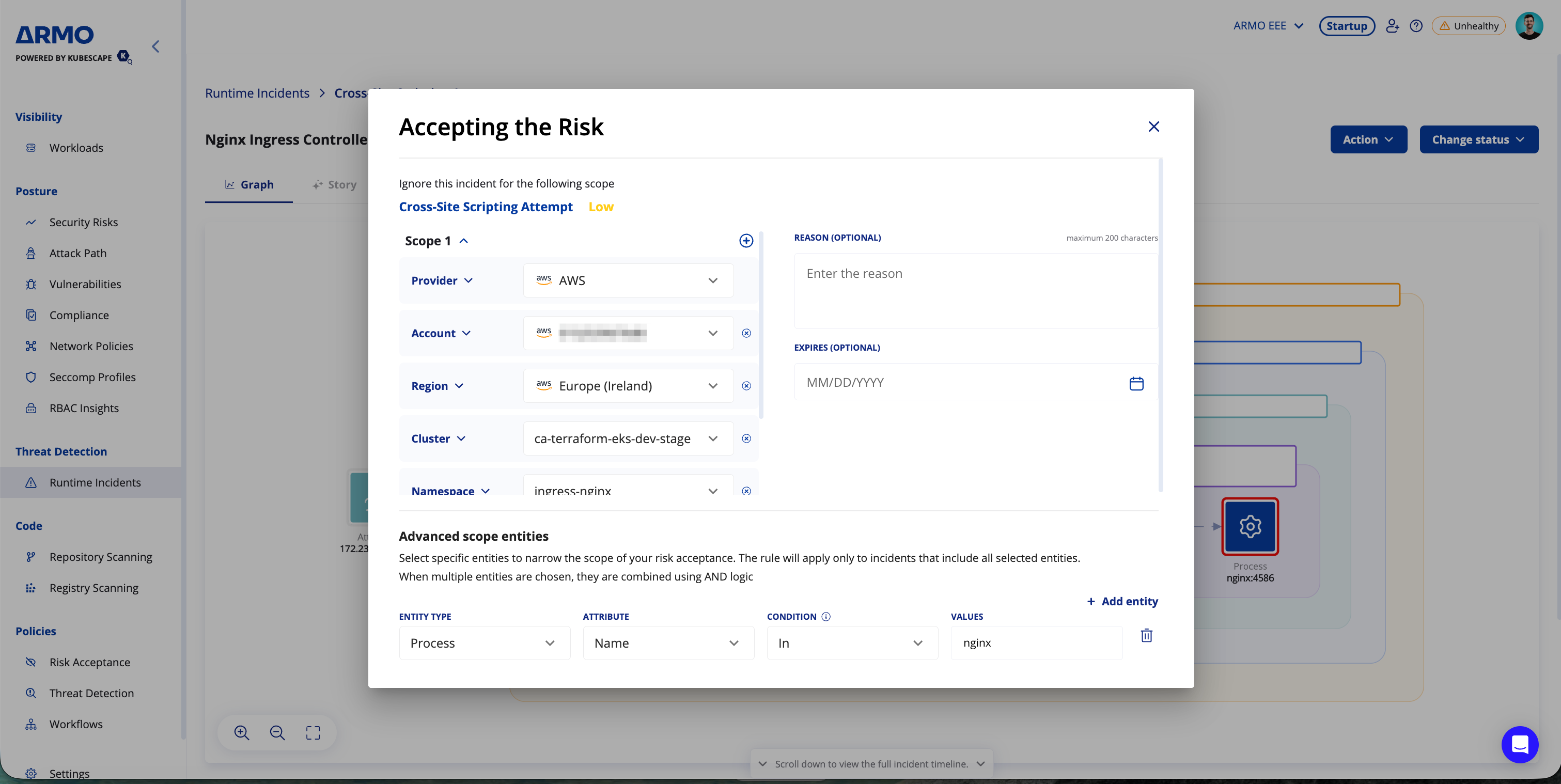
Entity-Based Risk Acceptance
Suppress future incidents for reviewed runtime behaviors by accepting risk based on specific entities such as files, processes, DNS requests, and more.
Entity-based matching adds fine-grained precision to incident suppression, so only incidents matching the exact scenarios you’ve deemed safe are silenced, while everything else remains visible.
These entity conditions are applied in addition to the defined scope, allowing you to control both where the rule applies and which runtime behavior it matches.
When to Use This
Use this feature when:
- An incident was investigated and found non-malicious
- You want to suppress repeat incidents of the exact same behavior
- You need control over how broadly or precisely the risk acceptance is applied
Supported Entities & Fields
Each rule can include one or more of the following entity types:
| Entity Type | Attributes |
|---|---|
| File | Name, Directory |
| Process | Name, Command Line |
| DNS | Domain Name |
| HTTP | Domain, User Agent, Endpoint, Method, Detected Payload |
| Network Endpoint | Destination IP, Destination Port, Protocol, Port |
| Cloud API | Service Name, Resource Name, API Call, User |
Example: You can suppress future alerts when both a process and a DNS request to are present in the alert.
Matching Logic
- OR across scopes: If multiple scopes are defined, the rule applies when an incident matches any of them
- AND across entity types: All specified entities must match for the rule to apply
- Exact match by default (
Inlogic) - Values are separated by commas. To include a comma as part of a value, escape it with \ (e.g., import os,pty,socket). - Partial matching: supported via Contains
- Matches are case-sensitive
Creating Suppression Rules
To accept a risk, open a runtime incident, click the Actions menu, and select Accept risk.
Suppression rules can be created directly from a specific incident. When doing so, relevant scope and entity details...
Suppression rules can be created directly from a specific incident . When doing so, relevant scope and entity details (such as file name, process, domain name, etc.) are auto-populated in the rule creation form. You can review, edit, or expand these before saving the rule.
- Suppression rules are active immediately upon creation.
- You can revoke suppression rules at any time from the Risk Acceptance Management section.
- Auto-prefill from incident: The default scope and relevant entity types and values are pulled directly from the incident you are accepting.
- Editable: You can change, remove, or add scope types, scopes, entities, and values.
- Affected incidents: See how many existing incidents would be affected by the current rule configuration before saving
Optional Settings
You can also configure the following optional settings when creating a risk acceptance rule:
- Reason: Add context explaining why the incident is being accepted.
- Expires: Define when the risk acceptance will automatically expire.
Note:When creating a risk acceptance rule, existing incidents that match the rule are marked as resolved. They remain stored in the system and can still be viewed.
However, future incidents that match the rule will not be generated at all, they will not be stored, resolved, or visible in the platform. This ensures reduced noise without losing visibility into past activity
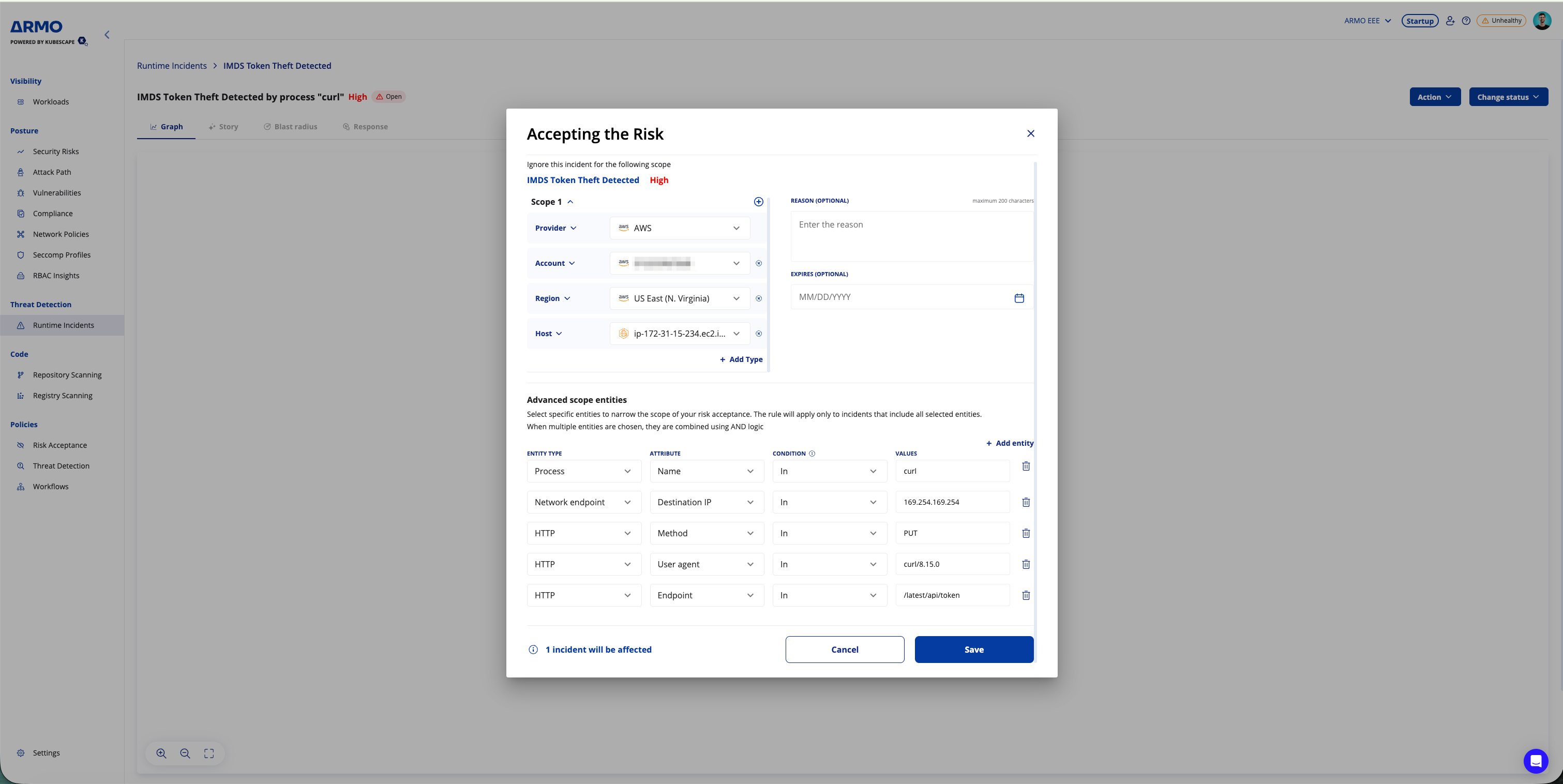
Example for accepting the risk - IMDS Token Theft Detected
When accepting risk for an IMDS Token Theft Detected incident, the default scope (Scope 1) is automatically generated from the selected incident context.
In this example, Scope 1 includes:
- Provider:
AWS - Region:
US East (N. Virginia) - Host:
ip-172-31-15-234.ec2.int
The incident details are also automatically populated as advanced scope entities.
Advanced scope entities
-
Process
- Name:
curl
- Name:
-
Network endpoint
- Destination IP:
169.254.169.254
- Destination IP:
-
HTTP
- Method:
PUT - User agent:
curl/8.15.0 - Endpoint:
/latest/api/token
- Method:
Only future incidents matching this scope and all of these advanced scope entity conditions will be suppressed.
FAQs
Q: What happens when I open the Accept Risk window?
- A default scope is automatically generated from the selected incident, so the risk acceptance initially applies only to the affected resource unless you broaden it.
Q: What is the scope of the incident suppression?
- Rules are evaluated against the defined scope and selected entities. Depending on the incident context, scope can follow either a cloud runtime path (Provider → Account → Region → Host) or a Kubernetes path (Provider → Account → Region → Cluster → Namespace → Workload).
Q: Can I select multiple values for the same scope type?
- No. Each Type–Value pair supports only a single value. To apply risk acceptance to multiple values, create additional scopes.
Q: How are multiple scopes evaluated?
- Multiple scopes are evaluated using OR logic. The rule applies if an incident matches any of the defined scopes.
Q: How are multiple entity conditions evaluated?
- Entity conditions are evaluated using AND logic. All selected entities must match for the rule to apply.
Q: Are suppressed incidents stored?
- Existing incidents that match the rule remain stored and can still be viewed. Future incidents that match the rule are not generated and therefore are not stored or shown in the platform.
Q: Are rules applied retroactively?
- Yes. Existing incidents that match the rule criteria are marked as resolved.
Q: Can I edit or delete a rule later?
- Yes. Go to the Risk acceptance section under Policies to manage all risk acceptance rules.
Q: What is the required Helm version for supporting Scope entities?
- “Scope entities” requires Helm chart v1.28.3 or higher.
Updated 7 months ago