
Linear
Forward ARMO Security findings to Linear
The ARMO–Linear integration allows you to automatically create and manage Linear issues from ARMO platform. This helps security and engineering teams collaborate effectively by tracking remediation work directly in their existing Linear workflows.
By enabling this integration, ARMO will create Linear issues for selected security issues, enriched with context such as affected assets, risk factors, attack details, and remediation guidance.
What This Integration Supports
- Automatically create Linear issues from ARMO platform
- Map security findings to specific Linear Workspace, teams, and projects
- Control which security issues are forwarded by scope category, and conditions
- Keep security findings and engineering remediation aligned in one workflow
Prerequisites
Before configuring the integration, ensure the following:
- You have an active Linear workspace
- You have permission to install integrations in Linear
- You have Admin or Manager access in the ARMO Platform
Step 1: Configure Linear Integration in ARMO
-
Log in to the ARMO Platform
-
Navigate to Settings → Integrations
-
Select Linear
-
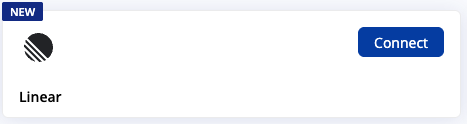
Click Connect on the Linear card
-
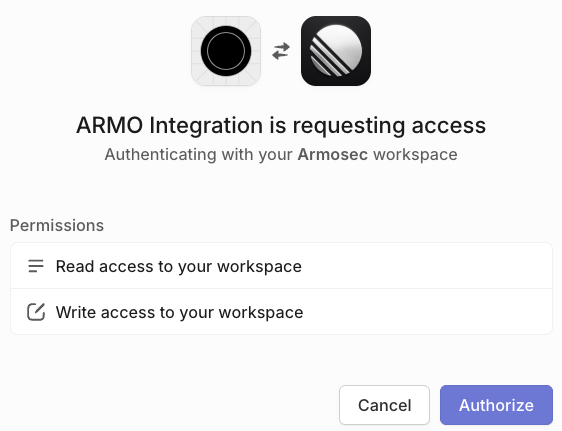
Authorize the required permissions
-
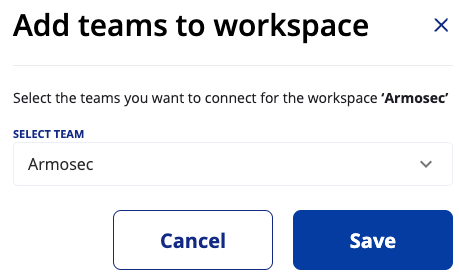
Select the teams you want to connect for the workspace
-
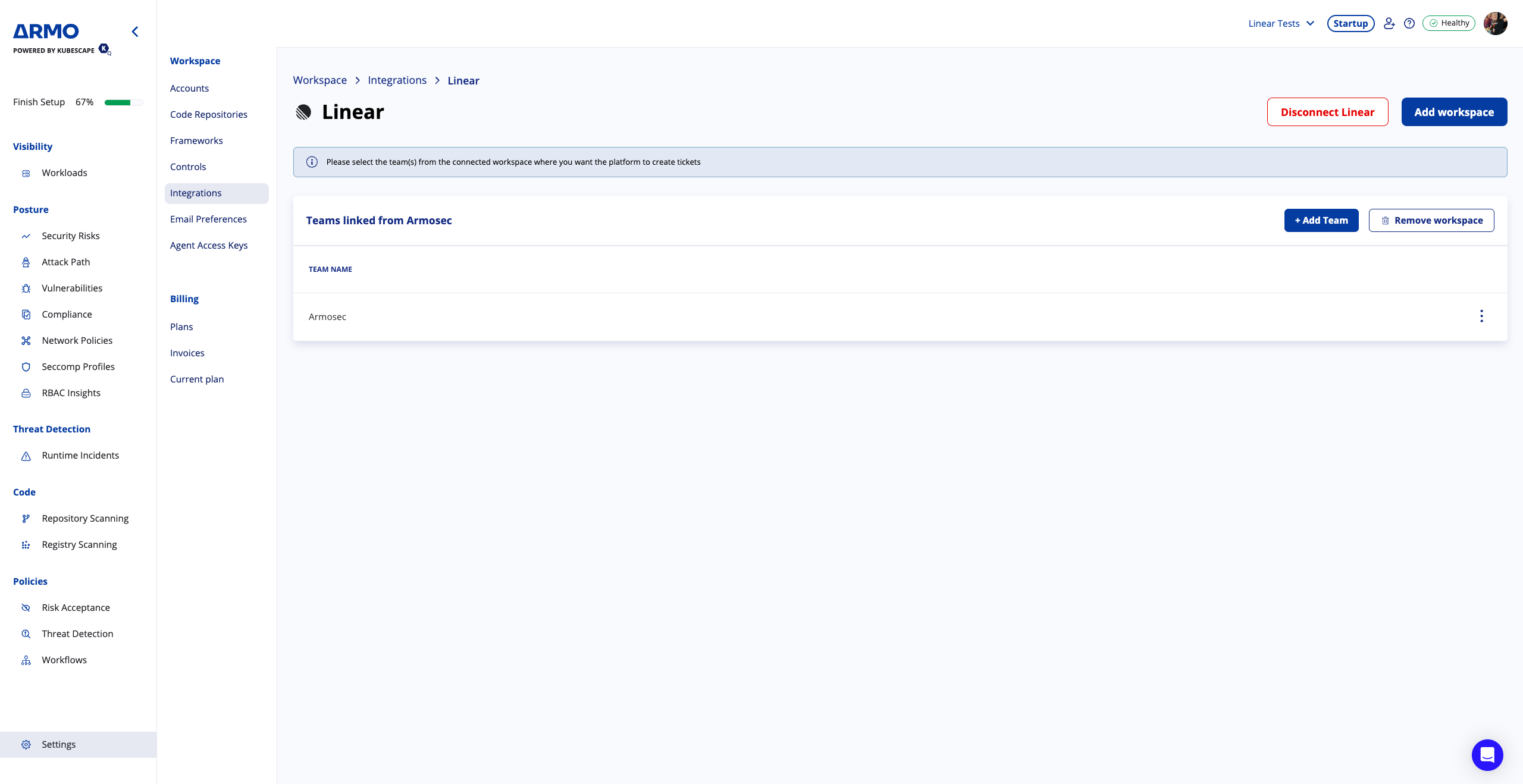
Click Save
Step 2: Create a linear issue
After you set up the Linear integration, you can create a Linear issue for any security finding on the ARMO Platform by clicking the 3 dots menu and clicking Create ticket
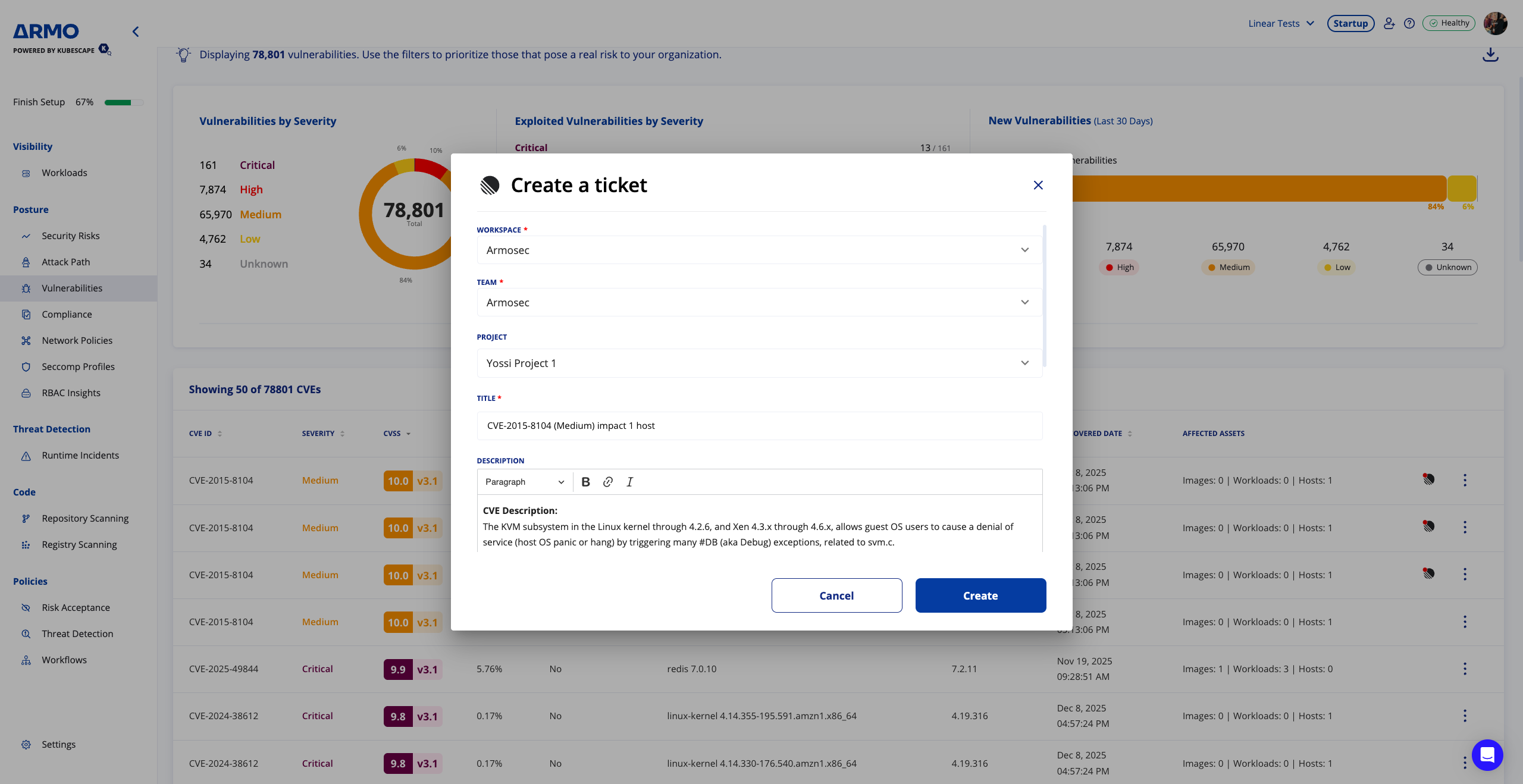
Linear ticket indicator
After opening a Linear ticket, you will find a Linear icon on that security issue, indicating there is a ticket assigned. When you mouse hover over that Linear icon, you can see the attached ticket identifier and a link to the Linear ticket.
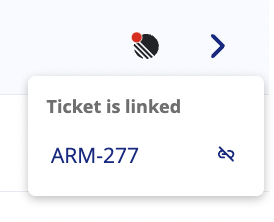
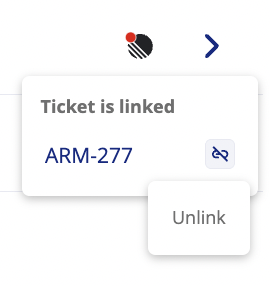
Unlink a Linear ticket
In case you want to unlink a Linear ticket that is attached to a security issue, simply click the Unlink button, and approve the Unlink action on the dialog
Automatically Close Linear Tickets When Issues Are Resolved
Overview
This feature streamlines issue lifecycle management between ARMO and Linear. When security issues are remediated or no longer detected in ARMO, the corresponding Linear tickets are automatically transitioned to a user-defined status (e.g., Done, Resolved). This eliminates manual ticket tracking, ensuring your Linear backlog always reflects the true state of your environment.
How It Works
When ARMO detects that a previously open issue (such as a vulnerability, compliance violation) is no longer present, it automatically triggers a synchronization event with Linear. If automatic closure is enabled for the Linear team, ARMO transitions the corresponding Linear ticket to the predefined status and adds a comment explaining the reason.
If the issue later reappears in ARMO, a new Linear ticket will be created, ensuring a clean separation between historical and current issues.
Configuration Steps
- Navigate to Integrations → Linear Settings Open your Linear integration configuration in the ARMO Platform.
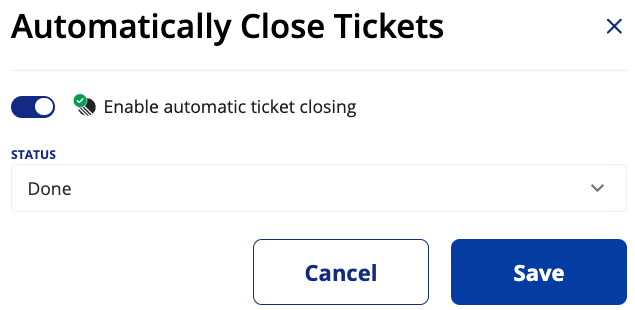
- Enable Auto-Close Behavior Toggle Enable automatic ticket closing to ON.
- Define Target Status Per Issue Type For each issue type (e.g., Bug, Task), select the Linear status to transition closed issues to — for example:
- Done
- Resolved
- Save Configuration Once saved, ARMO will automatically manage the ticket transitions according to the selected settings.
Behavior Details
| Scenario | Expected Behavior |
|---|---|
| Issue resolved in ARMO | Linear ticket transitions to the selected “closed” status. A comment is added: “This issue was resolved in ARMO and automatically closed.” |
| Issue manually closed in Linear | No further action is taken by ARMO. |
| Issue reappears in ARMO | A new Linear ticket is created, the previous one remains in its closed state. |
| Feature disabled | No automatic updates are made to Linear tickets. Manual management is required. |
Example Linear Comment

Key Benefits
- Save Time: Eliminate manual ticket closure.
- Improve Accuracy: Keep Linear perfectly aligned with ARMO issue states.
- Reduce Noise: Maintain a clear, actionable backlog focused on active issues.
- Simplify Workflows: Automate closure per project and issue type.
Notes
- Auto-closure applies only to issues that originated from ARMO.
- Each Linear team can independently enable or disable the feature.
Updated 4 months ago