
CDR Policies
Cloud Detection and Response Policies
CDR (cloud detection & response) policies help security teams detect and track threats across cloud infrastructure environments.
Use CDR policies to tailor which runtime activity is monitored, including: which cloud environments are monitored, which detection rules are applied, and how detections are surfaced. Policies can be configured to report incidents for review, send alerts to external systems, and open tickets in integrated ticketing tools.
A CDR policy can be tailored for:
- Scope - the cloud accounts and regions the policy monitors.
- Detection rules - the cloud threat behaviors or security events the policy detects.
- Actions & notifications - how incidents are surfaced: dashboard reporting, alerts to external systems, and ticket creation in integrated tools.
Create a CDR policy
Create a CDR policy to define which cloud environments are monitored, which detection rules are applied, and how detections are handled.
To create a CDR policy:
- Validate that the relevant cloud accounts are connected for CDR. See Onboard AWS, Onboard Azure, or Onboard GCP.
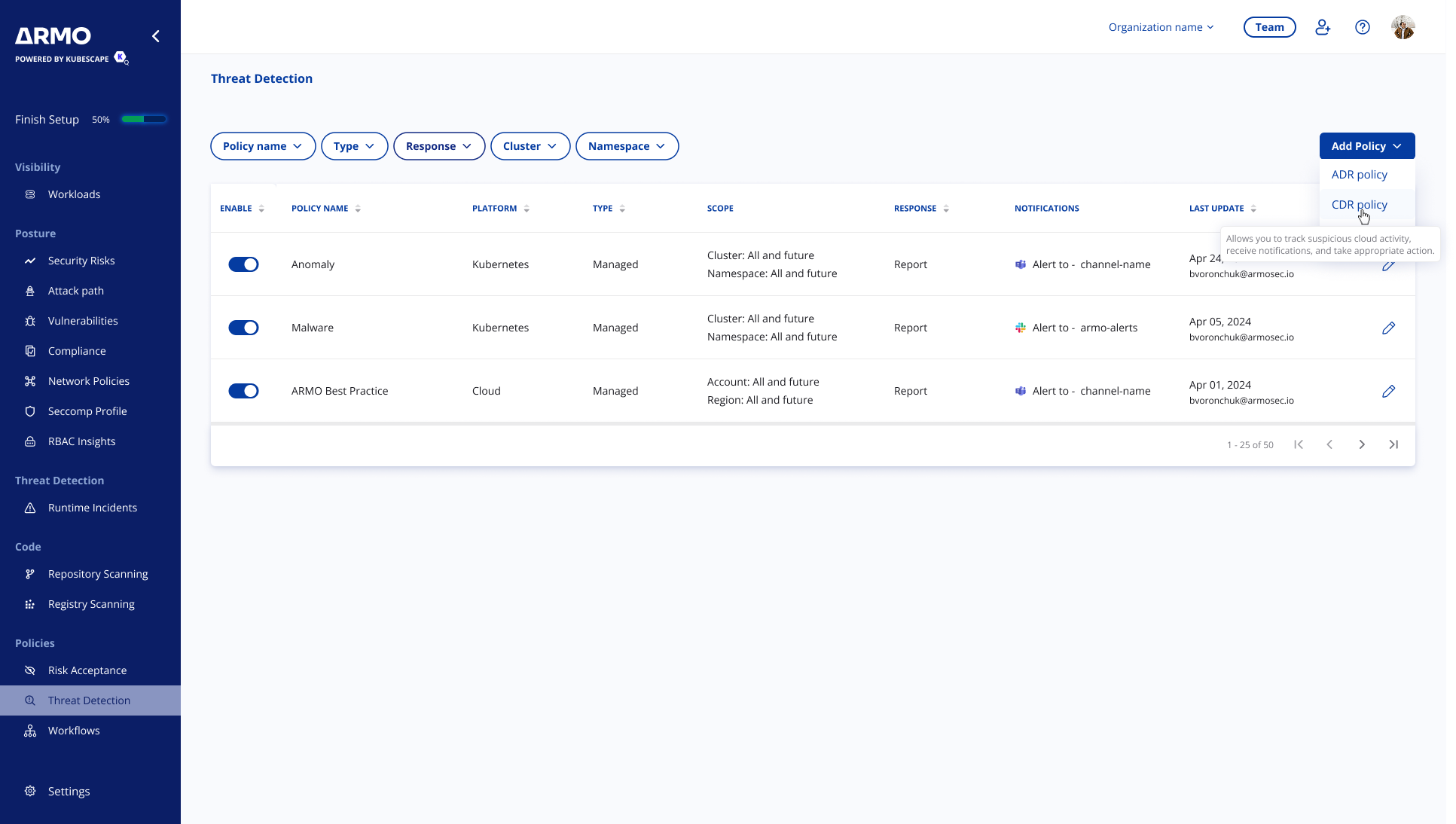
- In the ARMO platform, go to Policies > Threat Detection.
- Click Add Policy.
- Select Add CDR Policy.
Step 1: Add policy details
Enter the basic policy details:
- Policy name — a unique name that helps identify the policy.
- Description — an optional description that explains the policy’s purpose or intended scope.
Step 2: Define the scope
Define the scope to control which cloud environments the policy monitors.
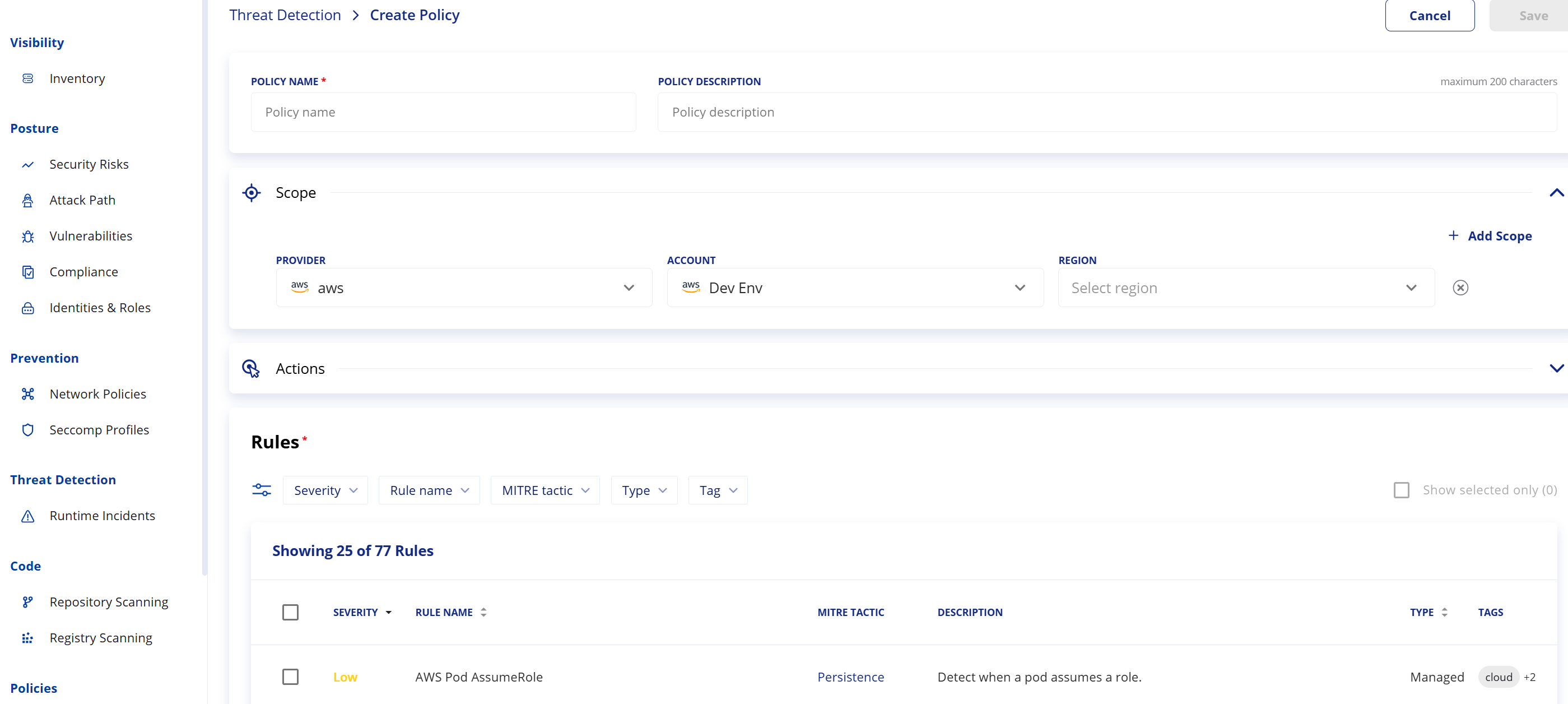
You can narrow a CDR policy to specific cloud provider, regions or accounts by selecting the cloud provider, accounts, and regions in the scope section.
To define the scope:
- Expand the Scope section.
- Select the cloud provider.
- Select one or more accounts to monitor (an account is an AWS account, an Azure subscription, or a GCP project).
- Select one or more regions to monitor.
- Add another scope if you want the policy to apply to more than one account, or region combination.
As detection rules differ by provider, we recommend setting a policy per provider. You can use All and future options, in account or region, to include all existing resources and automatically include new matching resources as they are added for the specific provider.
Note:
- Selections of regions within specific accounts or accounts within specific regions narrow the match, so the policy applies only to the selected regions/accounts within the environment.
- If you add multiple regions or accounts, each scope is evaluated separately. The policy applies when a resource matches any of the configured scopes.
- If no scope is selected, the policy applies to all connected cloud accounts and regions in which ARMO is deployed. If you select an account but no region, the policy applies to all regions in that account; if you select a region but no account, it applies to that region across all accounts (within the selected provider).
Step 3: Configure actions and notifications
Configure how detections are handled when the policy scope and selected detection rules match.
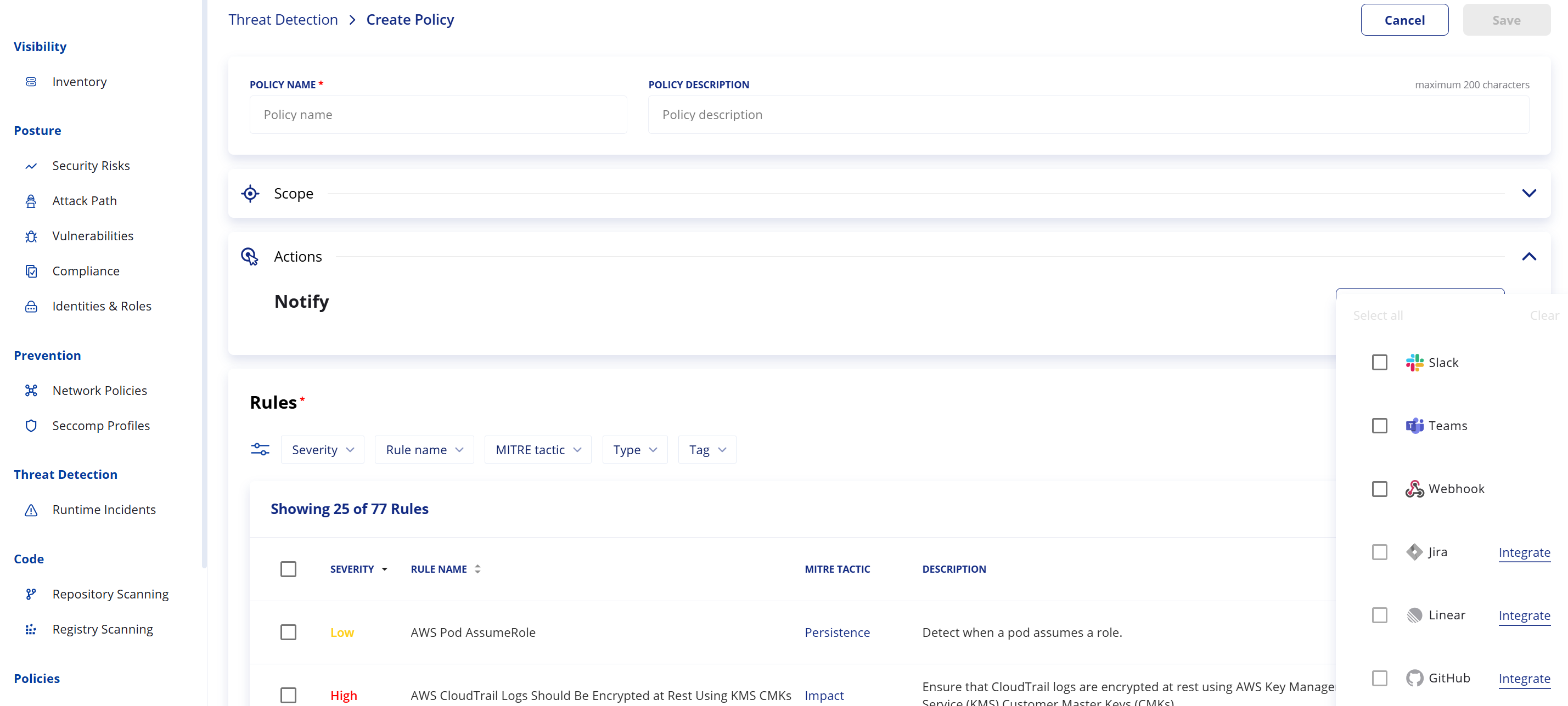
CDR policies can report detections to the Runtime incidents dashboard, send alerts to external systems, and create tickets in integrated ticketing tools.
Select one or more configured integrations to notify the relevant teams when detections occur.
Depending on the integration type, the policy can:
- Send alerts to notification channels, such as Slack, Microsoft Teams, or webhooks
- Create tickets in integrated ticketing systems, such as Jira or Linear
Note: Notifications and ticketing integrations must be configured in the integrations screen before they can be selected in a policy.
Step 4: Select detection rules
Select the detection rules that you would like to include in the specific CDR policy.
Rules define the cloud threat behaviors or security events the policy detects, such as suspicious infrastructure changes, security control modifications, logging changes, or other cloud activity that may indicate risk.
Use the rules table to review and select the relevant rules for the policy. You can use filters to narrow the list by attributes such as severity, rule name, MITRE tactic, rule type, or tags.
To select rules:
- Review the available rules.
- Use filters to find rules relevant to the policy.
- Select one or more rules.
- Use Show selected only to review the selected rules before saving.
Each rule includes details such as severity, name, description, MITRE ATT&CK tactic, type, and tags.
Step 5: Save the policy
After configuring the policy scope, notifications, and rules, click Save.
Once the policy is saved it will start reporting new detections moving forward. Incidents are reported to the Runtime incidents dashboard for review and tracking. External alerts and tickets will be triggered according to the configured notifications.
Note: Newly created policies are enabled by default. You can manage CDR policies from Policies > Threat Detection. Disabling a policy stops it from applying to new detections while existing incidents that were already reported remain available in the Runtime incidents dashboard for review and tracking.
Updated 17 days ago