
Incident Classification
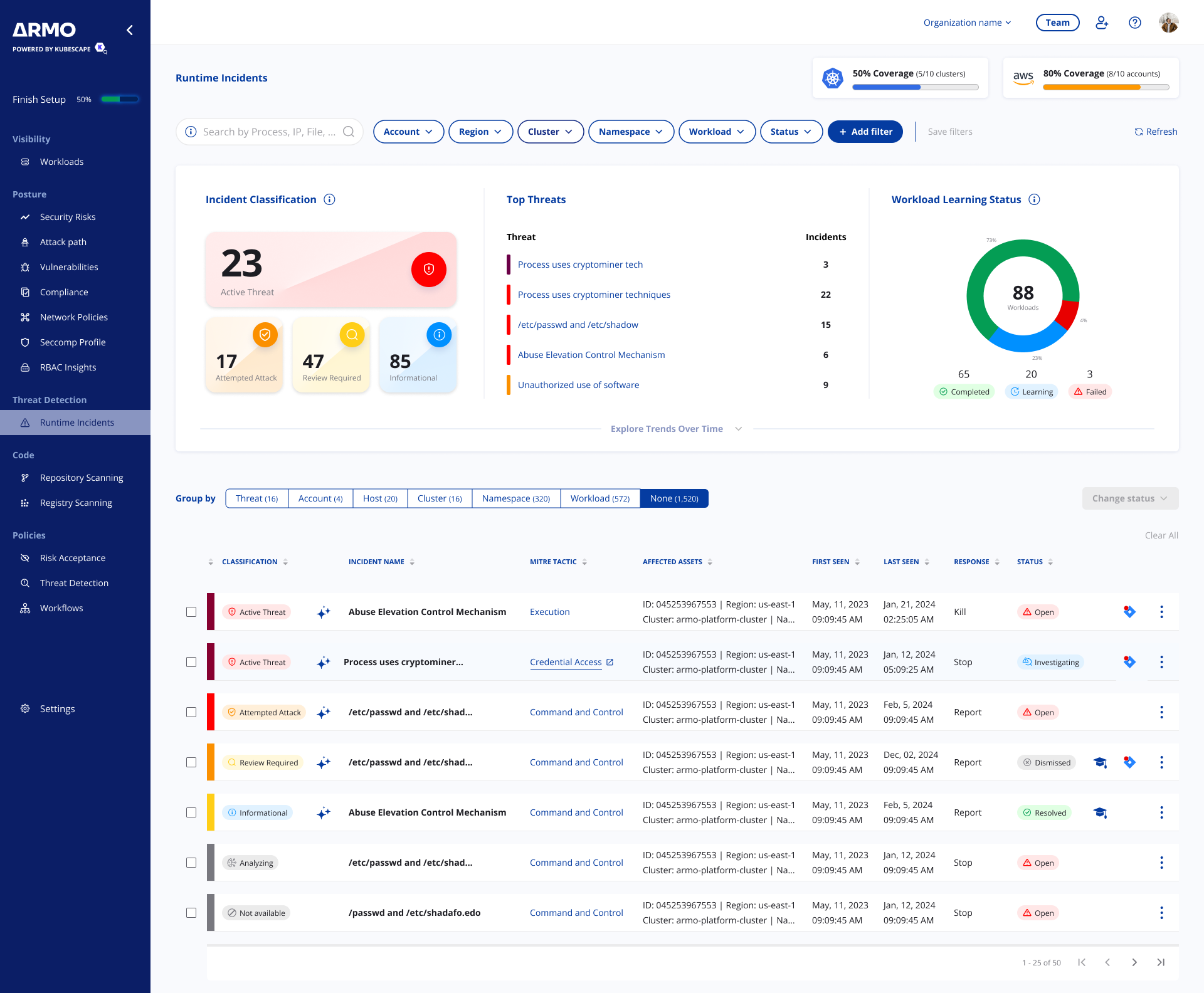
ARMO Platform uses AI-powered classification to automatically analyze runtime incidents and help security teams prioritize investigation and response. Each incident is assigned a classification, such as Active Threat, Attempted Attack, Review Required, or Informational, along with AI-generated reasoning that explains the decision.
Incident classification helps ensure teams are notified only when it matters. By using classifications in Threat Detection policies, teams can trigger urgent notifications or response actions only for incidents that require immediate attention, such as Active Threat incidents, while lower-priority incidents remain available for later review. This reduces alert fatigue and helps avoid interrupting teams for incidents that are not likely to require immediate response.
Key benefits
- Prioritized triage — Incidents are classified by risk and response urgency, helping critical threats surface first.
- AI-generated reasoning — Each classification includes a short explanation of why the incident was categorized that way.
- Reduced alert fatigue — Lower-priority and informational incidents are clearly labeled, reducing unnecessary investigation.
- Seamless integration — Classification works with existing filters, grouping, and Threat Detection notification policies.
Classification Categories
Each incident is assigned one of the following classifications:
| Classification | Description |
|---|---|
| Active Threat | Activity that strongly indicates an active or ongoing threat and requires immediate investigation and response. |
| Attempted Attack | Activity consistent with an attack attempt, where available context indicates the attempt was blocked, failed, or did not result in compromise. |
| Review Required | Activity that may be suspicious, unusual, or environment-specific and requires human review to determine whether it is expected or malicious. |
| Informational | A low-risk incident that is likely benign but logged for visibility and audit purposes |
How Classification Works
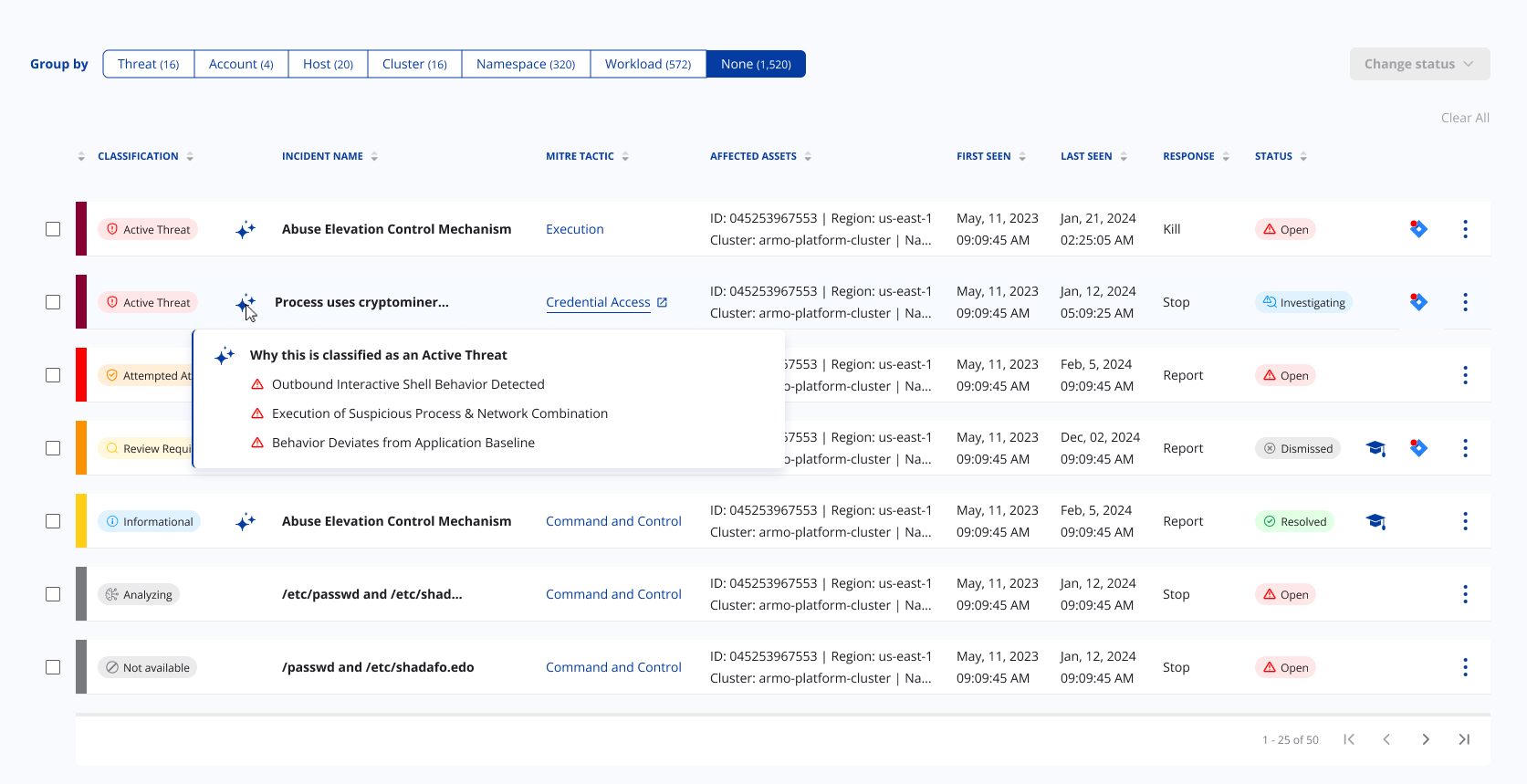
When a new runtime incident is detected, ARMO's AI engine automatically evaluates it against the definitions of each classification category. Based on the incident's details and context, the AI determines the most appropriate classification and provides brief reasoning explaining its decision.
While the analysis is in progress, the incident appears as Analyzing. Once complete, the incident is updated with its classification and AI-generated reasoning. You can view the reasoning by hovering over the AI reasoning icon on the Runtime Incidents dashboard, or from the incident details page, where it explains the key signals that influenced the classification.
In cases where there is not enough context to determine a reliable classification, or when AI classification cannot be completed, the incident classification is marked as
Not available. The incident remains accessible for investigation and can be manually reclassified.
Filtering by Classification
Classification is available as a filter on the Threat Detection dashboard, just like existing fields such as Severity, Cluster, or Namespace.
You can filter incidents by classification in two ways:
- Using the filter bar - Select a classification category from the filters to narrow the incident list, such as showing only
Active Threatincidents - Clicking on the chart - Click on a classification category directly in the incidents chart to filter the list by that category
Classification works alongside all existing filters, so you can create focused views like "Active Threats in production namespace."
Manual Classification Updates
Authorized users with Admin or Manager roles can manually update an incident's classification when additional context is available. This is useful for confirming suspected threats, marking known operational behavior, or adjusting the classification after investigation.
Updating a classification
You can update an incident's classification from two places:
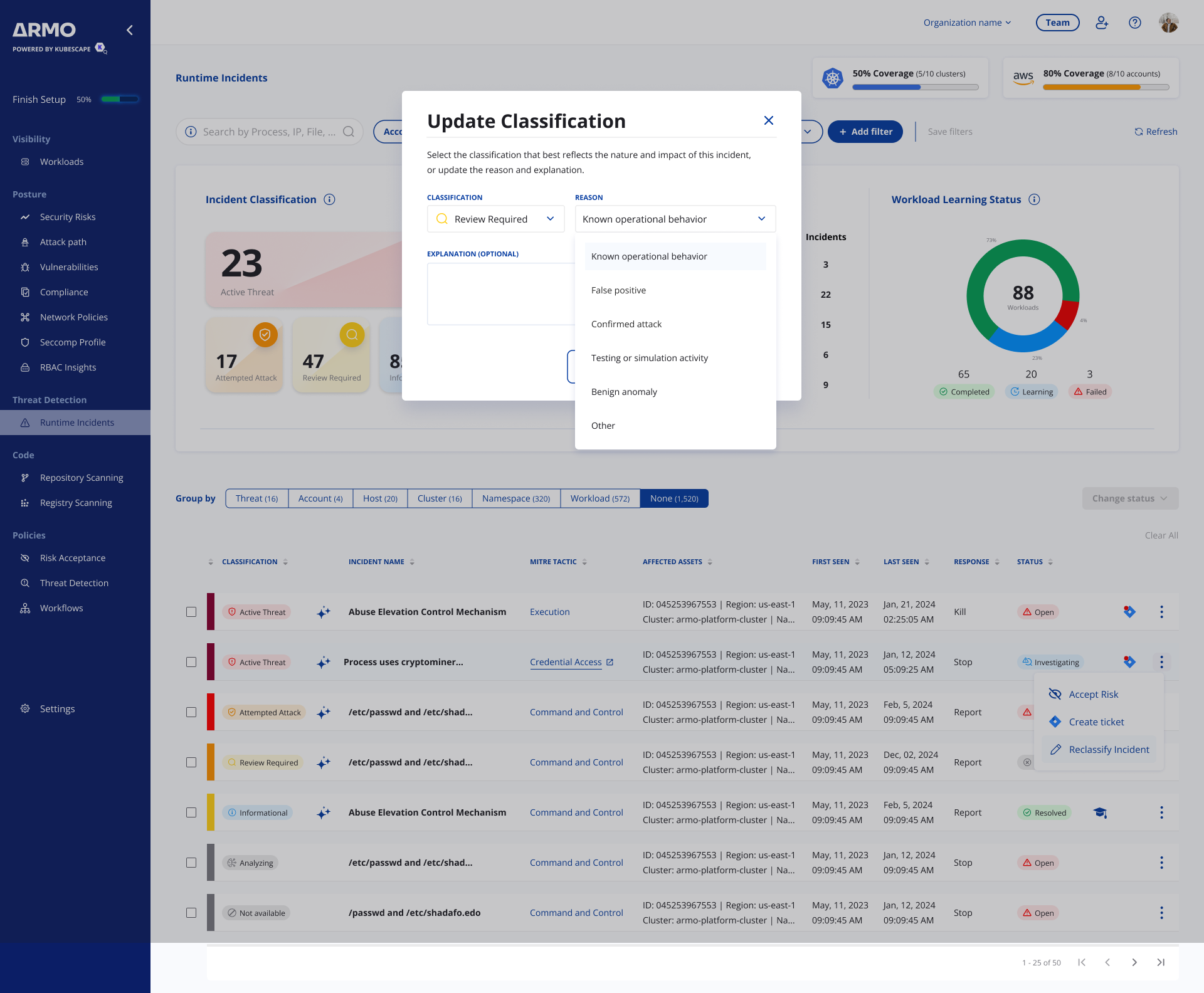
- Threat Detection dashboard - From the three-dot menu (⋮) on an incident row, select Update Classification
- Incident details page - From the Action button, select Update classification
In the Update Classification dialog, fill in the following fields:
| Field | Required | Description |
|---|---|---|
| Classification | Yes | The new classification category to assign |
| Reason | Yes | The reason that best explains why the classification is being updated, such as known operational behavior, testing activity, or a confirmed attack. |
| Explanation | No | Optional free-text context for the update, such as a maintenance window, simulation activity, or security-team validation. Max 200 characters. |
Classification update history
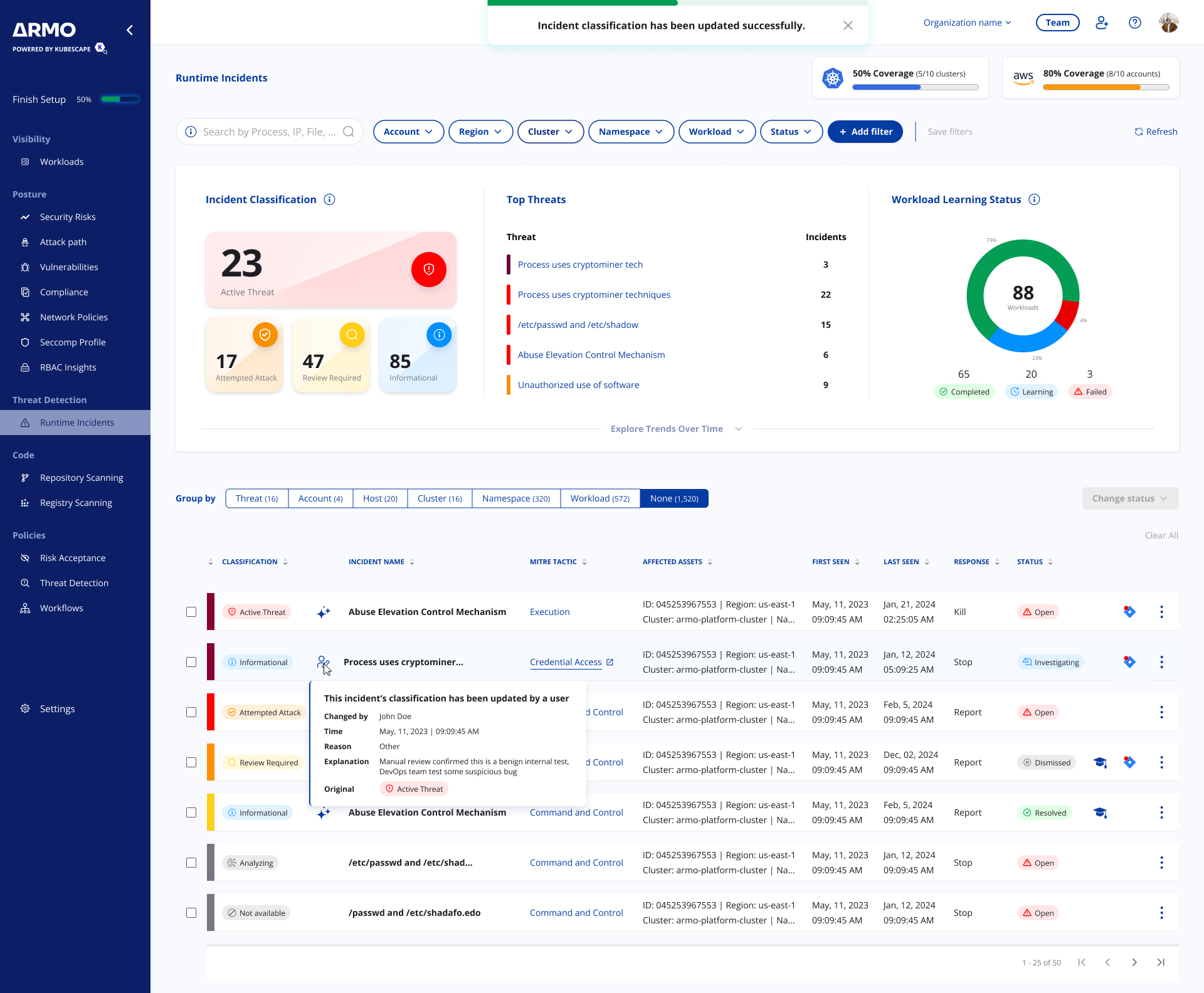
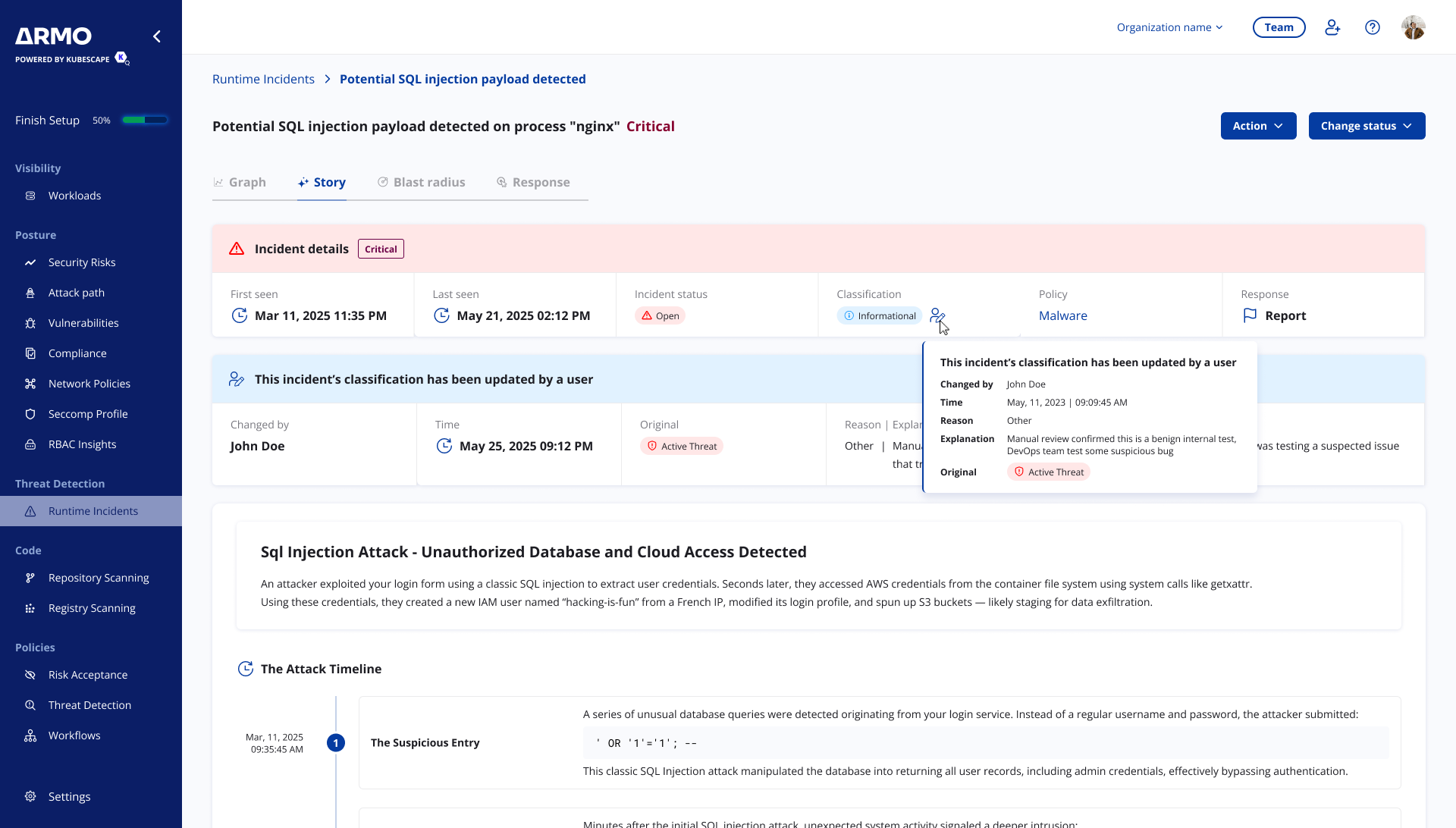
When an incident's classification is manually updated, the change is tracked. On the Threat Detection dashboard, an indicator appears in the incident's classification column. Hover over the indicator to view update details, including who made the change, when it was made, the reason, explanation, and original classification.
The full classification update history is also available on the incident details page, under the Story tab.
Threat Detection Policies & Classification
Incident classification is reflected in Threat Detection policies, allowing you to scope notifications and response actions based on the assigned classification.
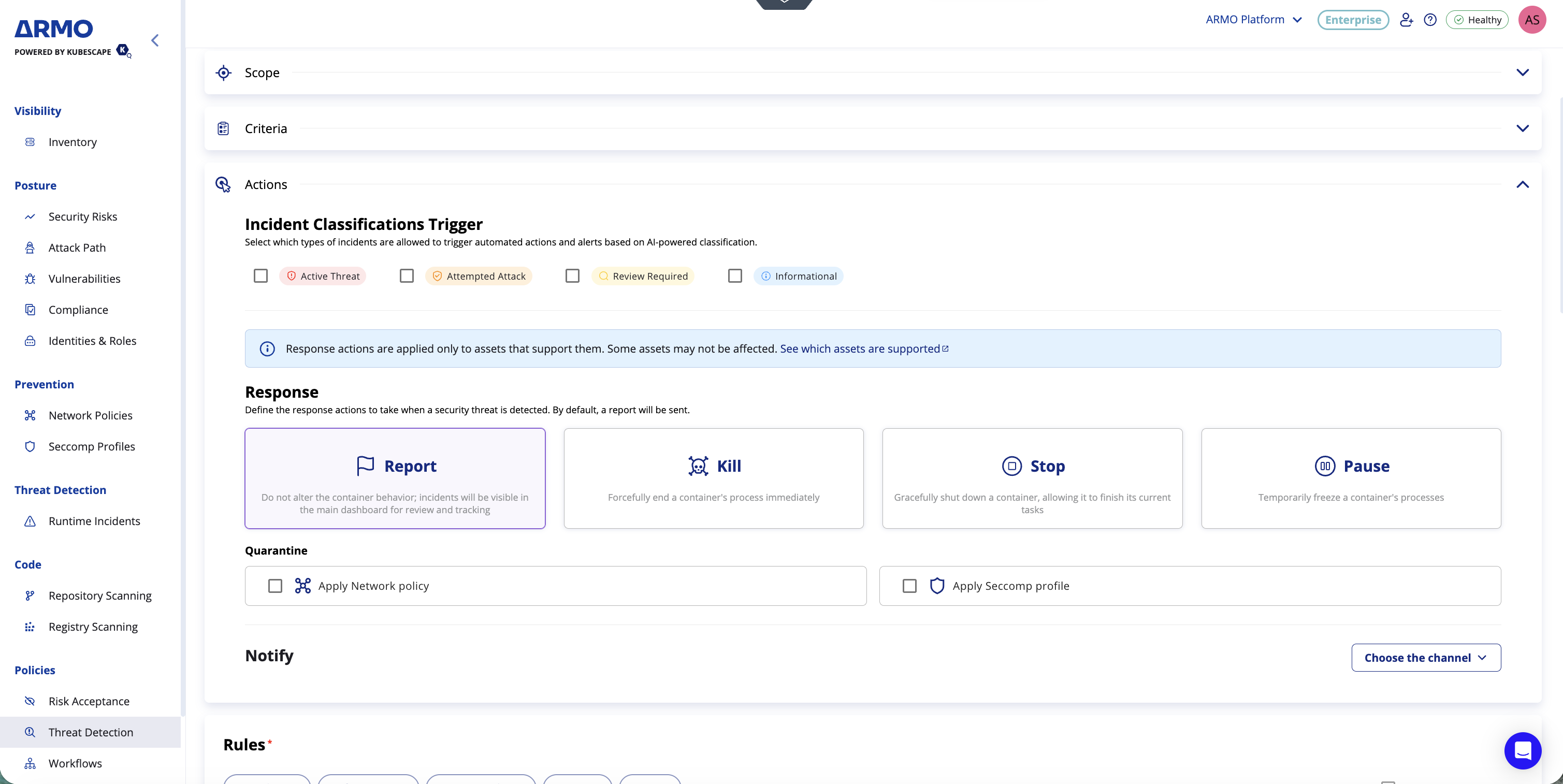
When configuring a policy, the Incident Classifications Trigger section lets you select which classification categories the policy should apply to.
For example, you can configure a policy that triggers urgent response actions only for Active Threat incidents, while a separate policy handles Review Required incidents with a lighter response, such as lower-priority notification or internal review. A broader policy can also include both Active Threat and Attempted Attack classifications to route higher-priority incidents to external systems such as SIEM or ticketing workflows.
If one or more classifications are selected, the policy waits for AI classification to complete before triggering the configured notifications or response actions. AI classification usually completes shortly after the incident is detected.
For full policy configuration details, see Threat Detection policies
Updated 4 months ago