
Cloud Detection & Response on AWS
Overview
ARMO Cloud Detection & Response (CDR) for Amazon Web Services delivers continuous threat detection for your AWS environment. ARMO deploys a lightweight log-ingestion stack in your AWS account that consumes AWS CloudTrail logs, evaluates events against ARMO's CEL-based detection rules, and forwards matched security alerts to the ARMO Platform, where they appear as Runtime Incidents.
AWS CDR uses the same detection rule engine as ARMO's cloud detection capabilities across other cloud providers, so detections, incident workflows, and custom rules behave consistently across your environments.
Cloud Detection and ResponseTo view all incidents related to your connected cloud environments, go to Runtime Incidents in the left navigation menu.
How It Works
- From the ARMO onboarding wizard, you start the AWS Cloud Detection & Response connection flow.
- ARMO opens a pre-configured AWS CloudFormation stack in your AWS account.
- The CloudFormation stack deploys the AWS resources required to process CloudTrail events.
- CloudTrail logs are collected from the configured trail log location.
- Events are evaluated against ARMO's CEL-based detection rules.
- Only matched alerts, with the required event context, are sent to the ARMO Platform and surfaced as Runtime Incidents.
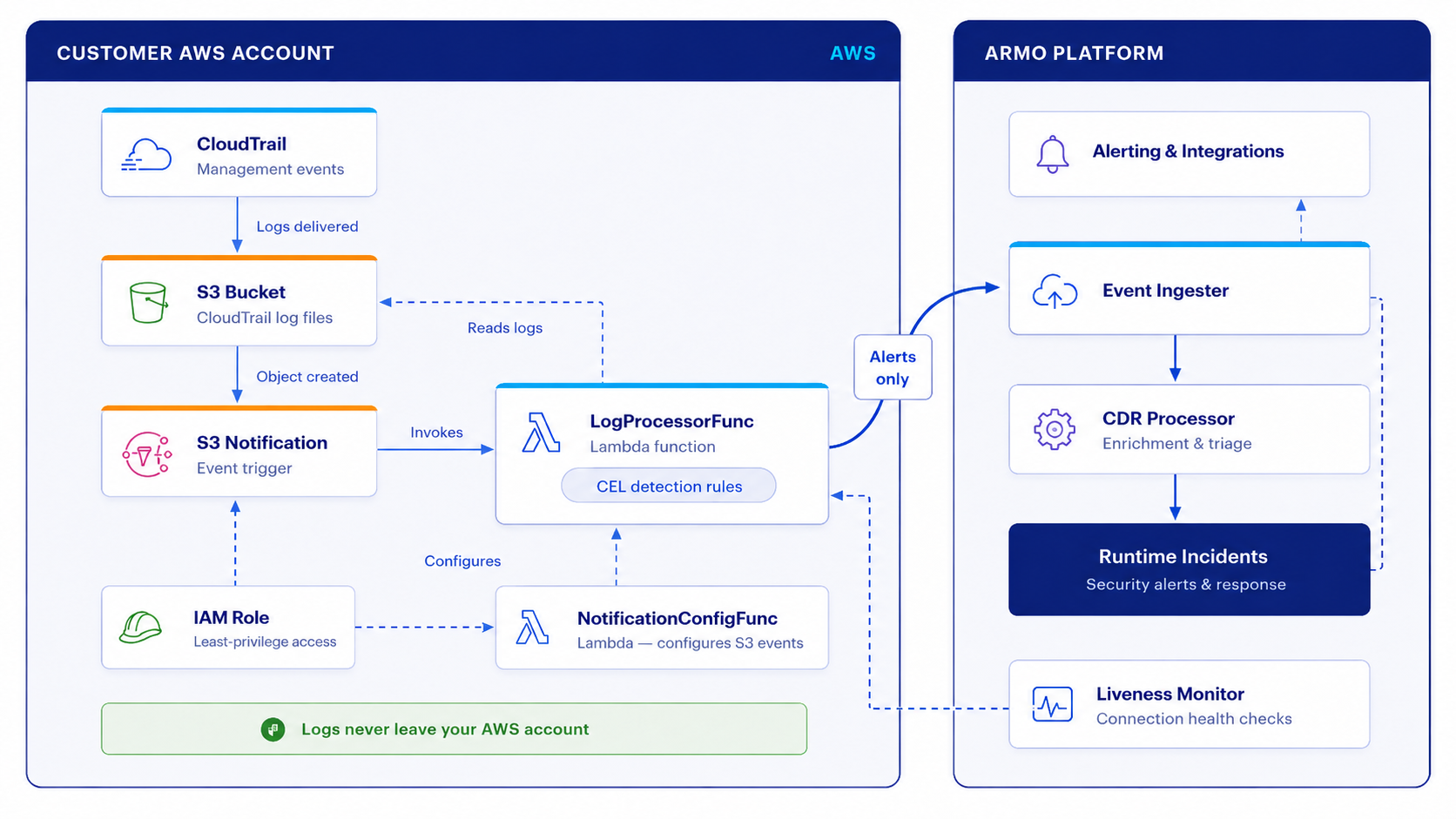
Your logs stay in your AWS accountRaw CloudTrail logs are processed in your AWS account. Only detection alerts and the minimal context needed to investigate them are transmitted to ARMO.
What ARMO Detects
ARMO's detection rules cover suspicious and high-risk activity in your AWS environment, for example:
- IAM policy or role changes that may introduce privilege escalation paths
- Creation or modification of access keys
- Root account usage or changes to authentication settings
- Security group rules opened to the internet, such as
0.0.0.0/0 - S3 bucket policy changes or public access configuration changes
- CloudTrail changes, deletion, or logging tampering
- Unusual or unauthorized AWS API activity patterns
Detection rules are written in CEL (Common Expression Language) and managed under Policies → Threat Detection in the ARMO Platform. You can also author your own rules. See Custom Rules.
Log Coverage & Cost
| Log type | Default | Notes |
|---|---|---|
| CloudTrail management events | Required | Used for AWS control-plane activity such as IAM changes, security group updates, CloudTrail changes, and other management API calls. |
| CloudTrail data events | Optional | Provides deeper visibility into selected data-plane activity. Enable selectively because it can increase log volume and AWS cost. |
The CDR components run in your AWS account, so related AWS service costs are billed to your AWS account. Depending on your configuration, this may include CloudTrail, S3, Lambda, CloudWatch Logs, and related AWS resources.
CloudTrail region requirementCloudTrail must be enabled in the same AWS region selected for the CDR connection. ARMO also recommends enabling CloudTrail logging for all regions.
Prerequisites
| Item | Requirement |
|---|---|
| ARMO Platform access | You have Admin or Manager access to the ARMO Platform. |
| AWS access | You have permissions to create a CloudFormation stack and approve IAM resources created by the template. |
| CloudTrail | CloudTrail is configured in the selected AWS region, with management events enabled. |
| Trail log location | You have the CloudTrail S3 log location available. |
| AWS KMS key | If your CloudTrail logs are encrypted with SSE-KMS, provide the relevant AWS KMS key information when requested. |
| Connectivity | The deployed CDR components can communicate with the ARMO Platform over HTTPS. |
High-Level Flow
- In the ARMO Platform, initiate the AWS onboarding flow and enable Cloud Detection and Response.
- Choose the AWS region where the CDR stack should be deployed.
- Enter a display name and provide the CloudTrail details.
- Launch the AWS CloudFormation stack from the ARMO wizard.
- Create the stack in AWS and wait for the deployment to complete.
- Return to ARMO and verify that the AWS account status changes to Connected.
Detailed Step-by-Step Onboarding
Step 1: Start the AWS CDR connection in ARMO
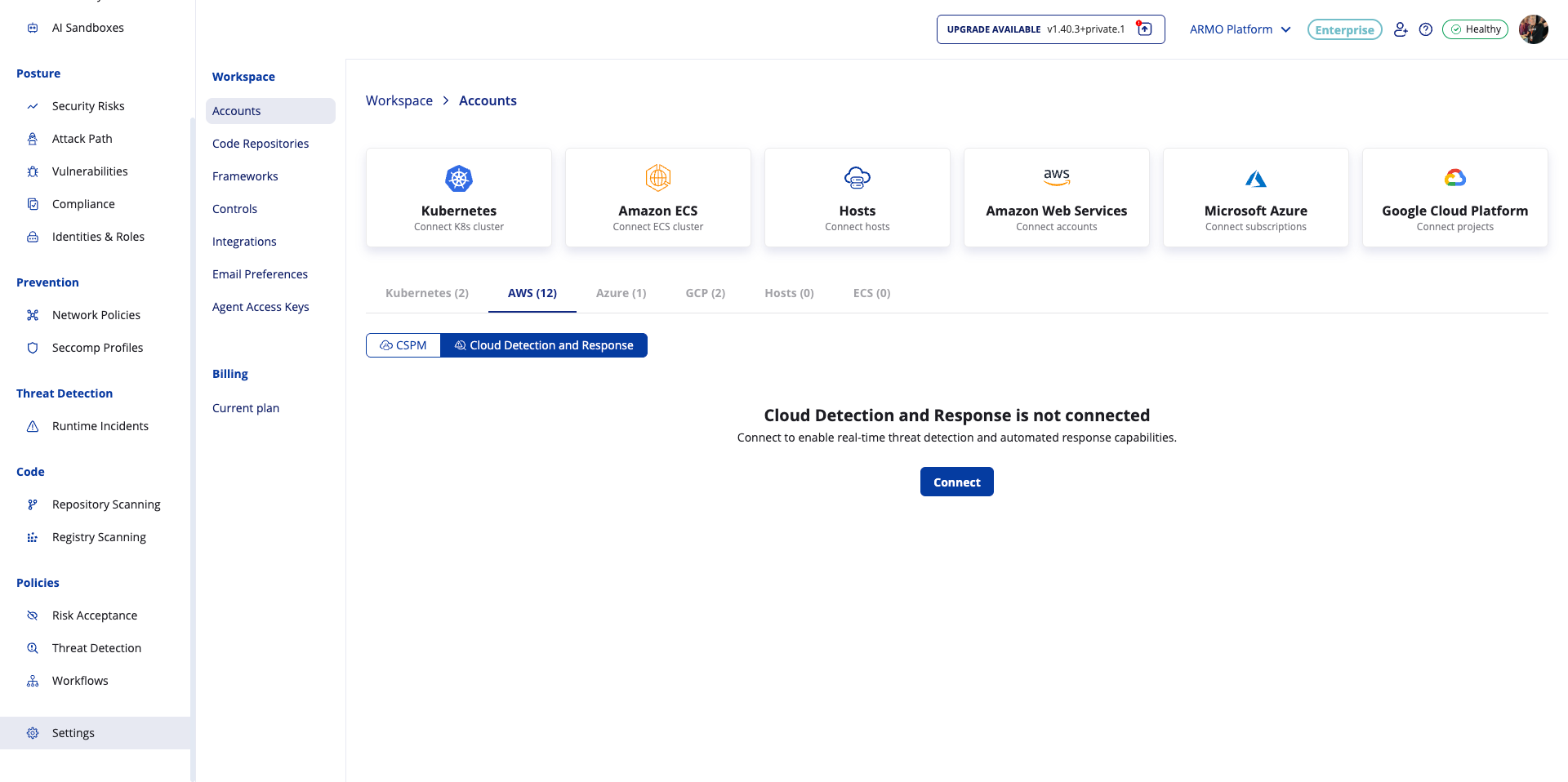
- In the ARMO Platform, go to Settings → Accounts.
- Select the AWS tab.
- Select Cloud Detection and Response.
- Click Connect.
Step 2: Select the AWS integration scope and security feature
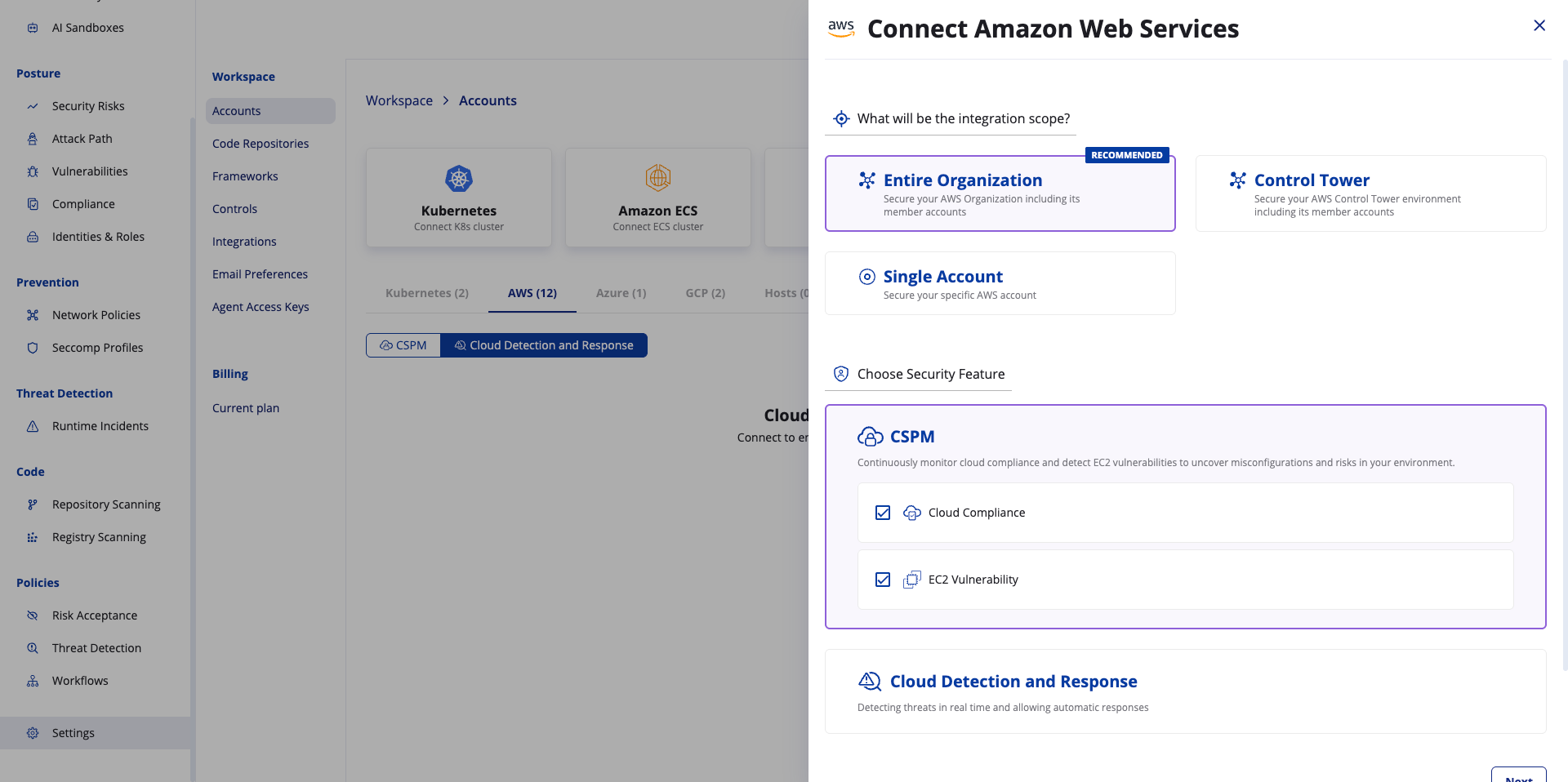
- Under What will be the integration scope?, select between Entire Organization and Single Account.
- Under Choose Security Feature, select Cloud Detection and Response.
- Click Next.
Step 3: Choose the AWS region
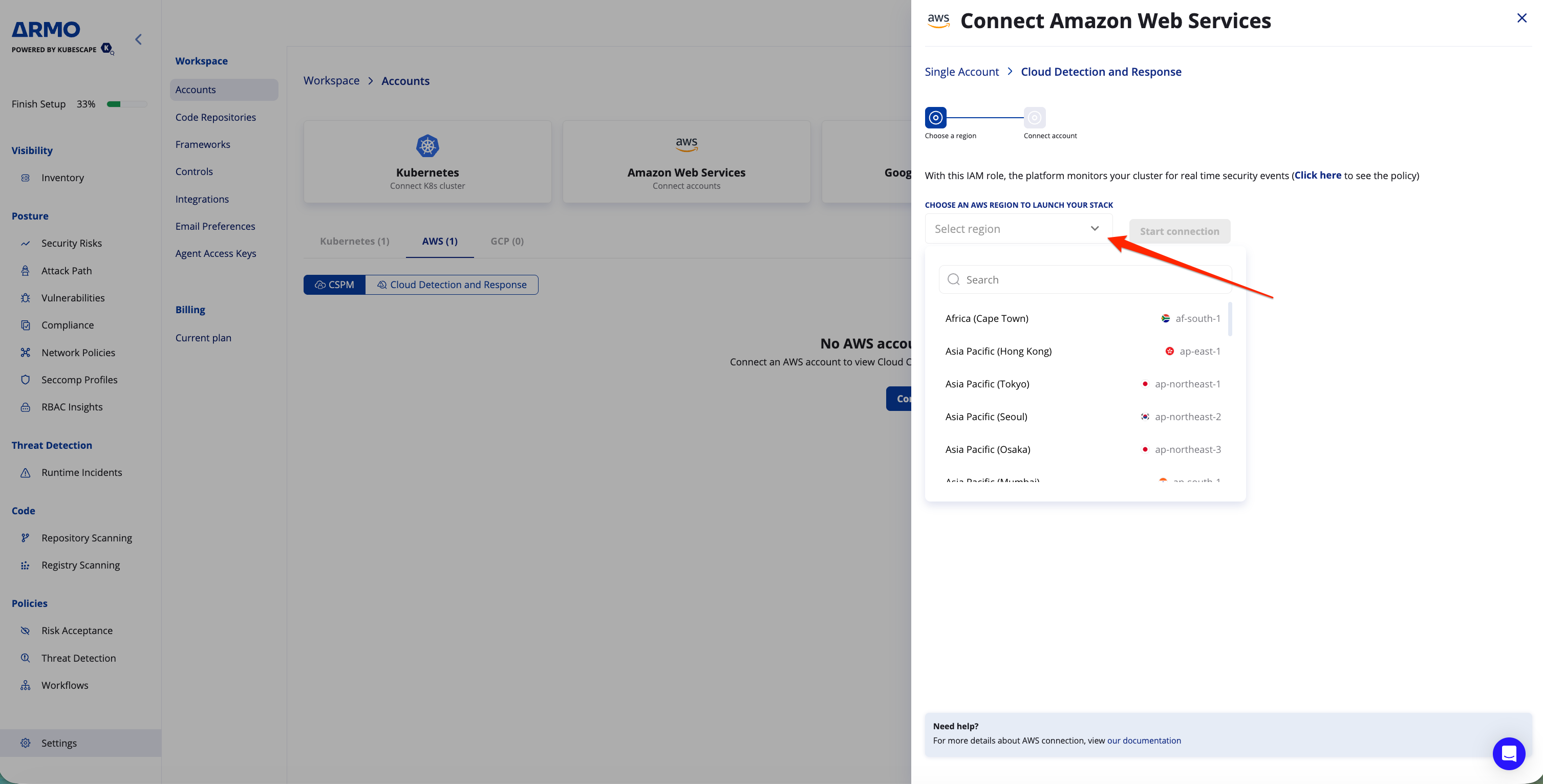
- Select the AWS region where the CDR stack should be deployed.
- Click Start connection.
Step 4: Configure CloudTrail details
- Enter a Display Name for the AWS account.
- If CloudTrail is not already configured, follow the instructions in the wizard:
- Open the CloudTrail Console.
- Click Create trail.
- Choose a trail name.
- Choose an S3 bucket for the trail.
- Enable Log file SSE-KMS encryption, if required by your environment.
- Enable Management events.
- Review and create the trail.
- Copy the required values from the created CloudTrail trail.
- In the ARMO wizard, enter:
-
Trail Log Location
-
AWS KMS Key, if applicable
If your CloudTrail logs are encrypted with SSE-KMS, enter the KMS key ARN used to encrypt the CloudTrail log files.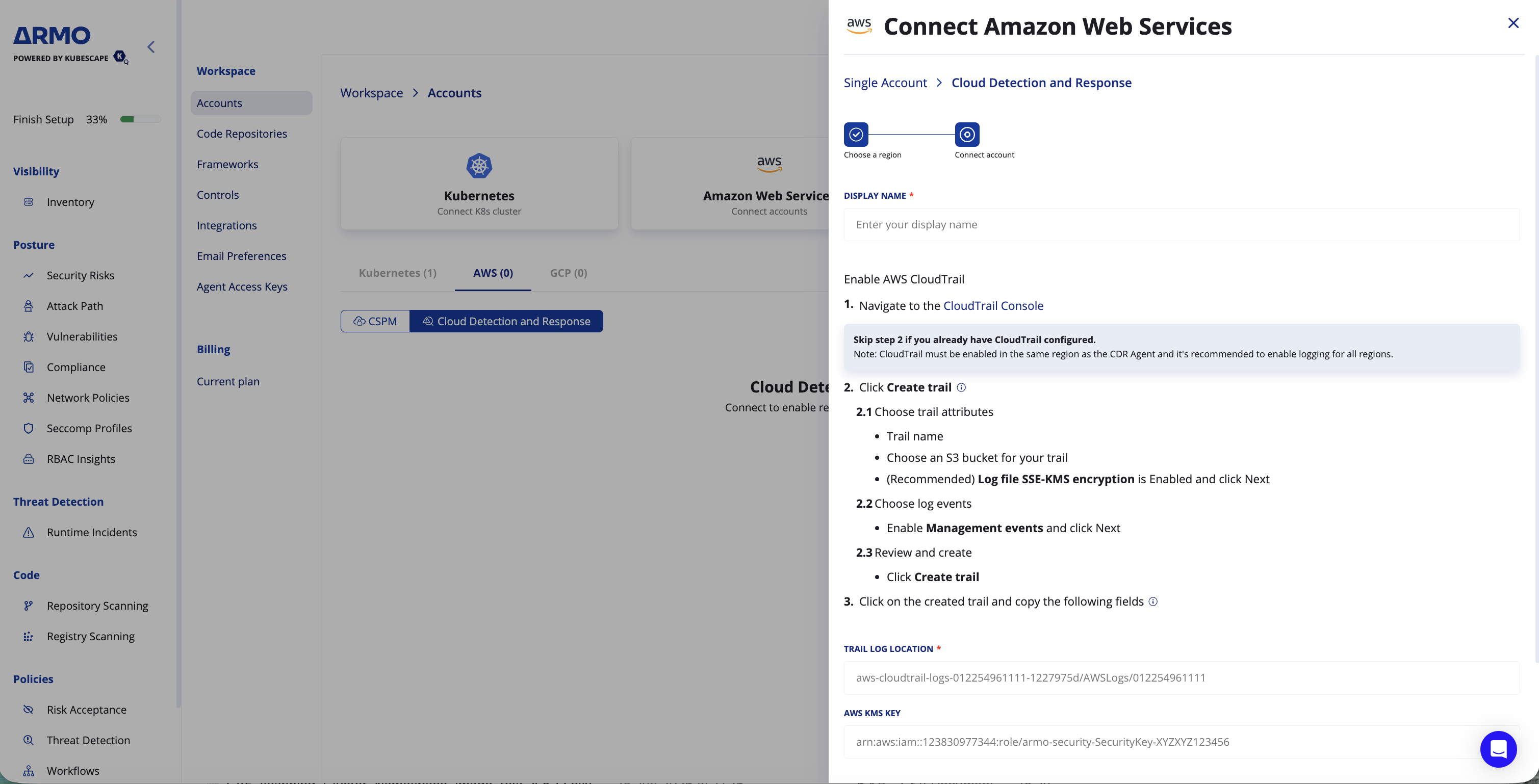
-
Existing CloudTrailIf you already have CloudTrail configured, you can skip creating a new trail and use the existing trail details. Make sure CloudTrail is enabled in the same region as the CDR Agent and that management events are enabled.
Step 5: Launch the CloudFormation stack
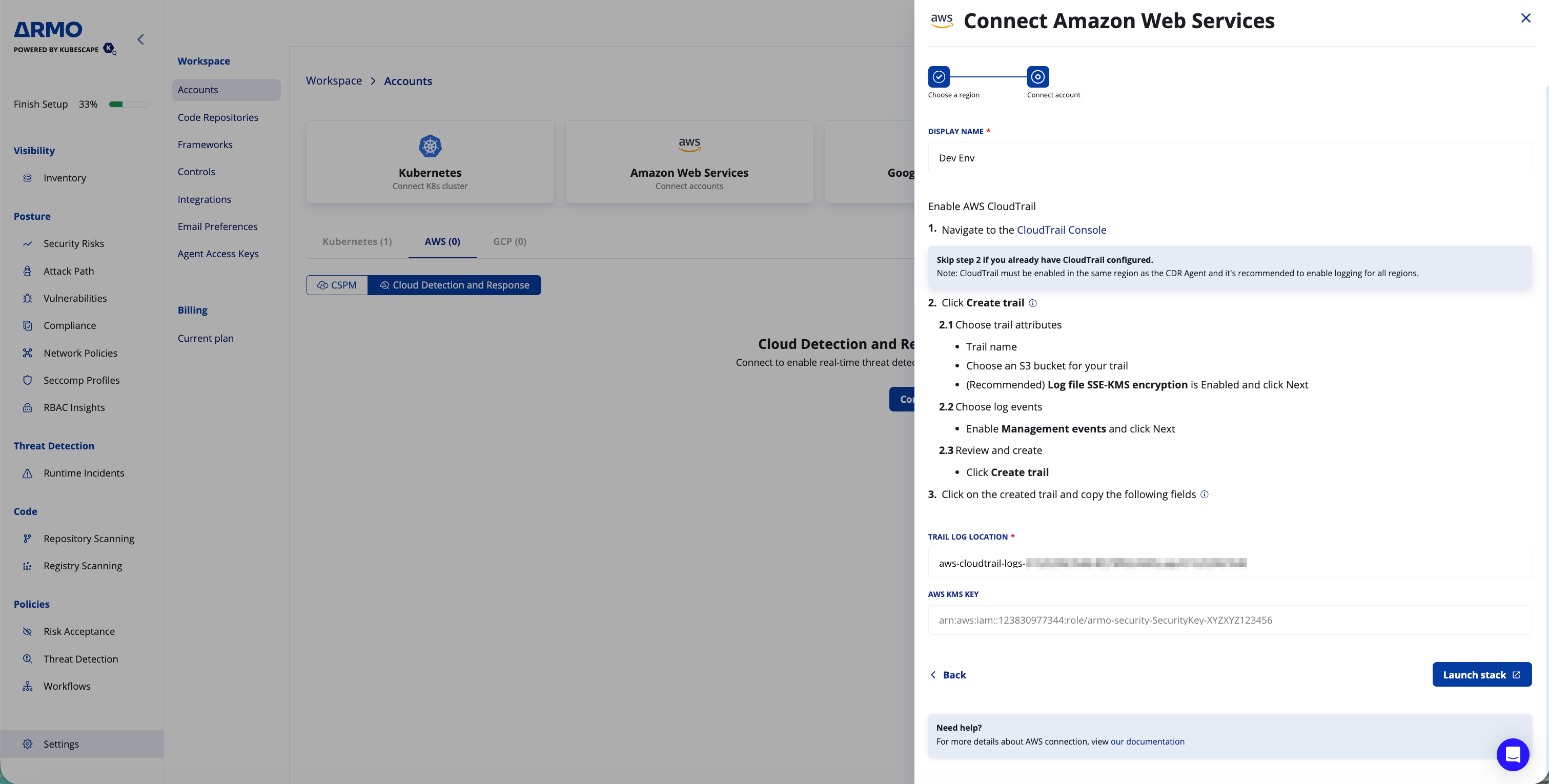
After entering the required CloudTrail details, click Launch stack.
This opens the AWS CloudFormation console with the ARMO CDR stack template pre-loaded.
Step 6: Create the CloudFormation stack in AWS
In the AWS CloudFormation Quick create stack page:
- Review the template details.
- Review or update the stack name.
- Review the pre-filled parameters, such as:
AccessKeyAccountIDBucketAccountId, if the CloudTrail S3 bucket is located in a different AWS account
- Scroll to the Capabilities section.
- Select I acknowledge that AWS CloudFormation might create IAM resources with custom names.
- Click Create stack.
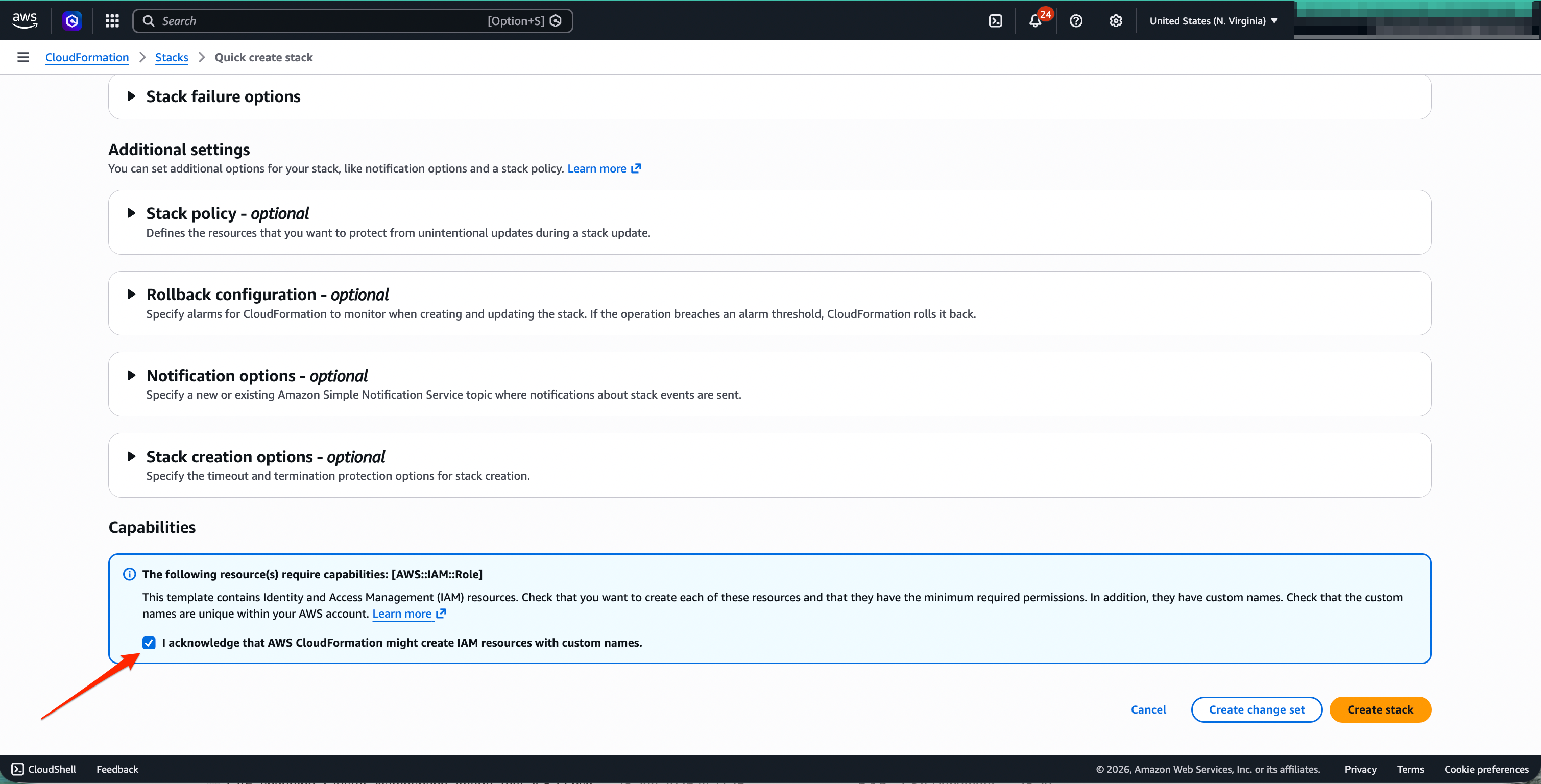
IAM resourcesThe CloudFormation template creates the AWS resources required for CDR log ingestion and processing. Review the template according to your organization's security process before creating the stack.
Step 7: Wait for the connection to complete
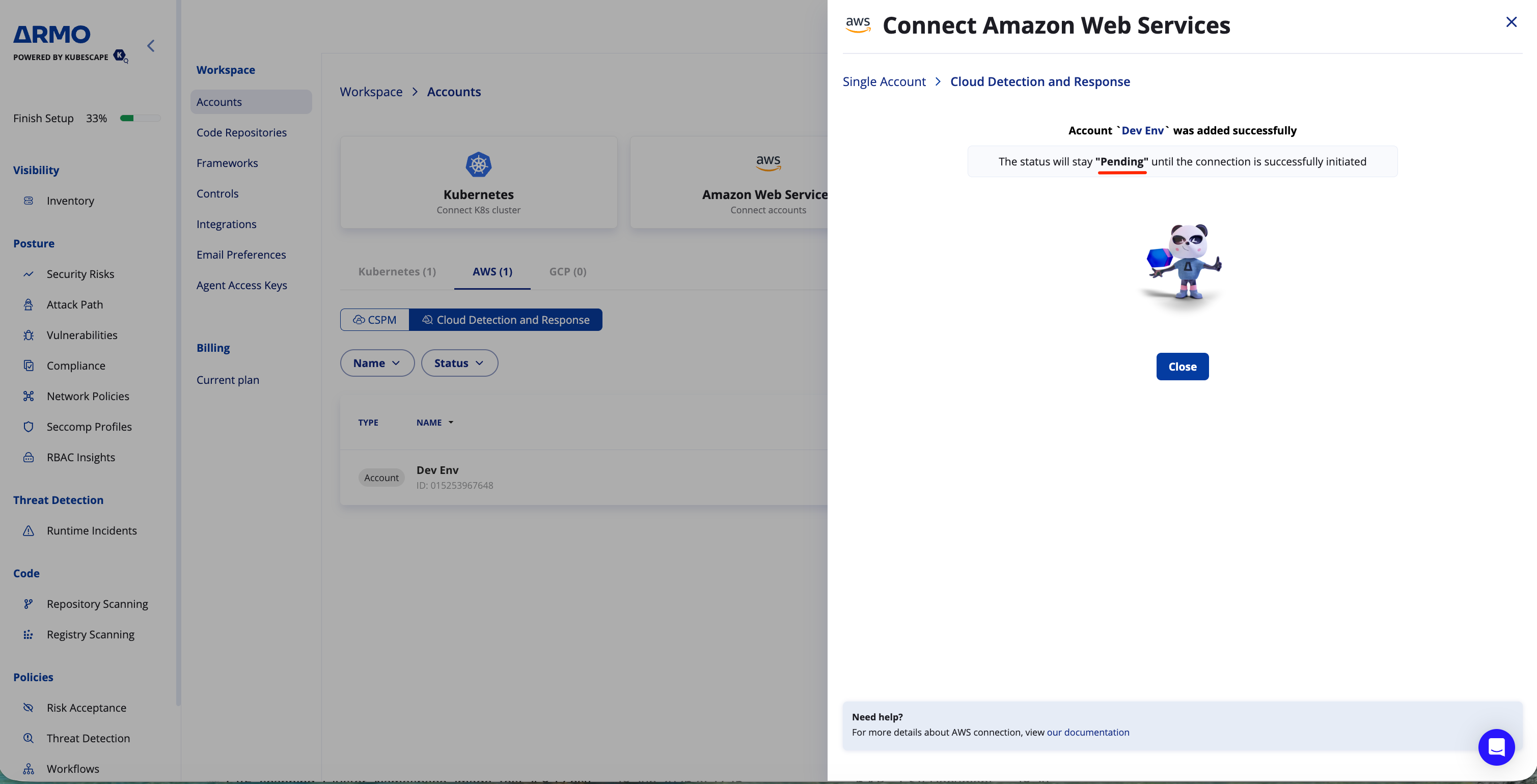
After launching the stack, return to the ARMO wizard.
The account is added to ARMO, but the status may remain Pending until the CloudFormation stack is created successfully and the connection is initiated.
Step 8: Verify the CloudFormation stack
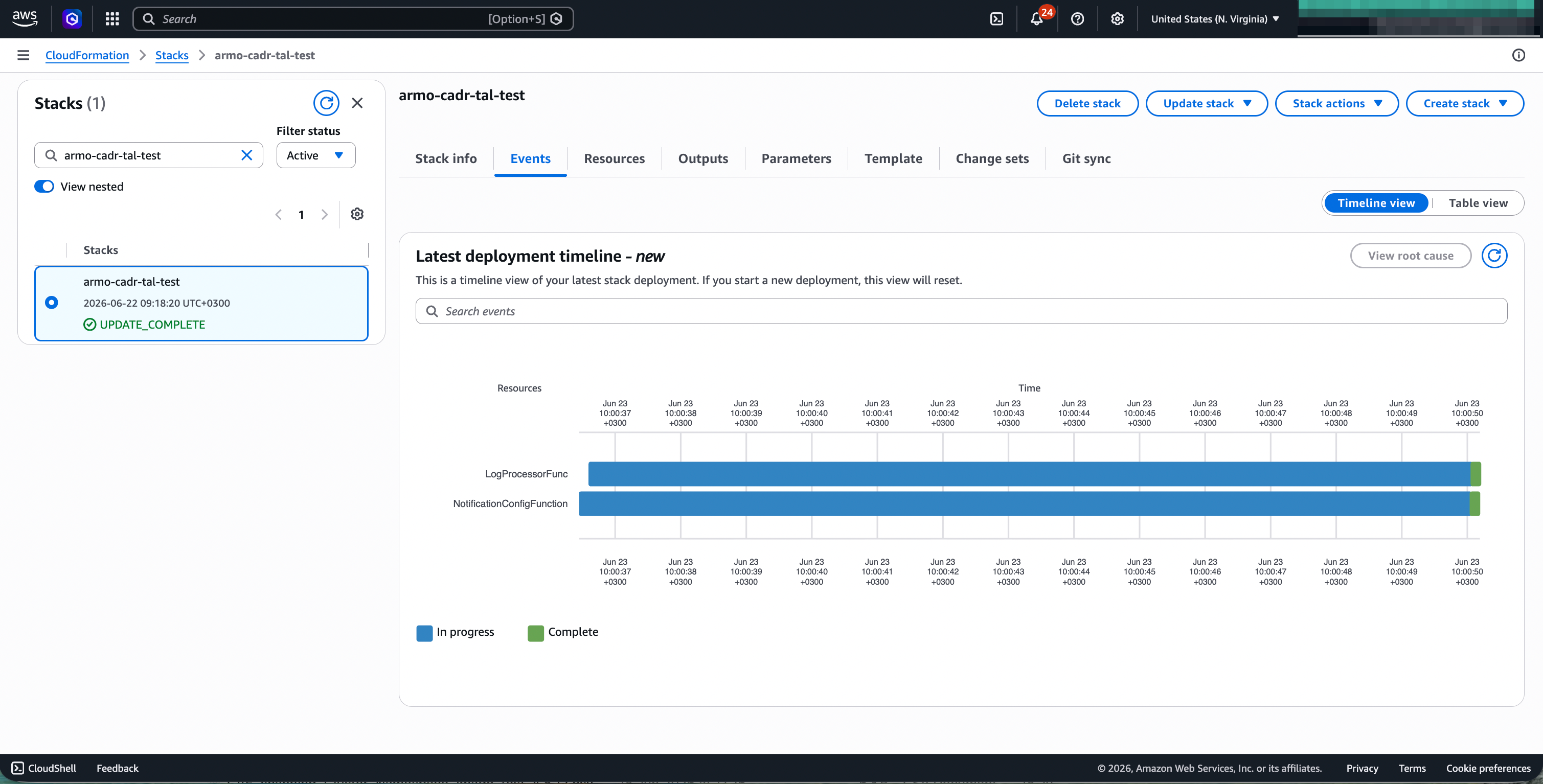
In AWS CloudFormation, open the ARMO CDR stack and verify that the stack status is complete.
For a new deployment, the expected status is CREATE_COMPLETE. If the stack was updated, the status may appear as UPDATE_COMPLETE.
Step 9: Verify the connection in ARMO
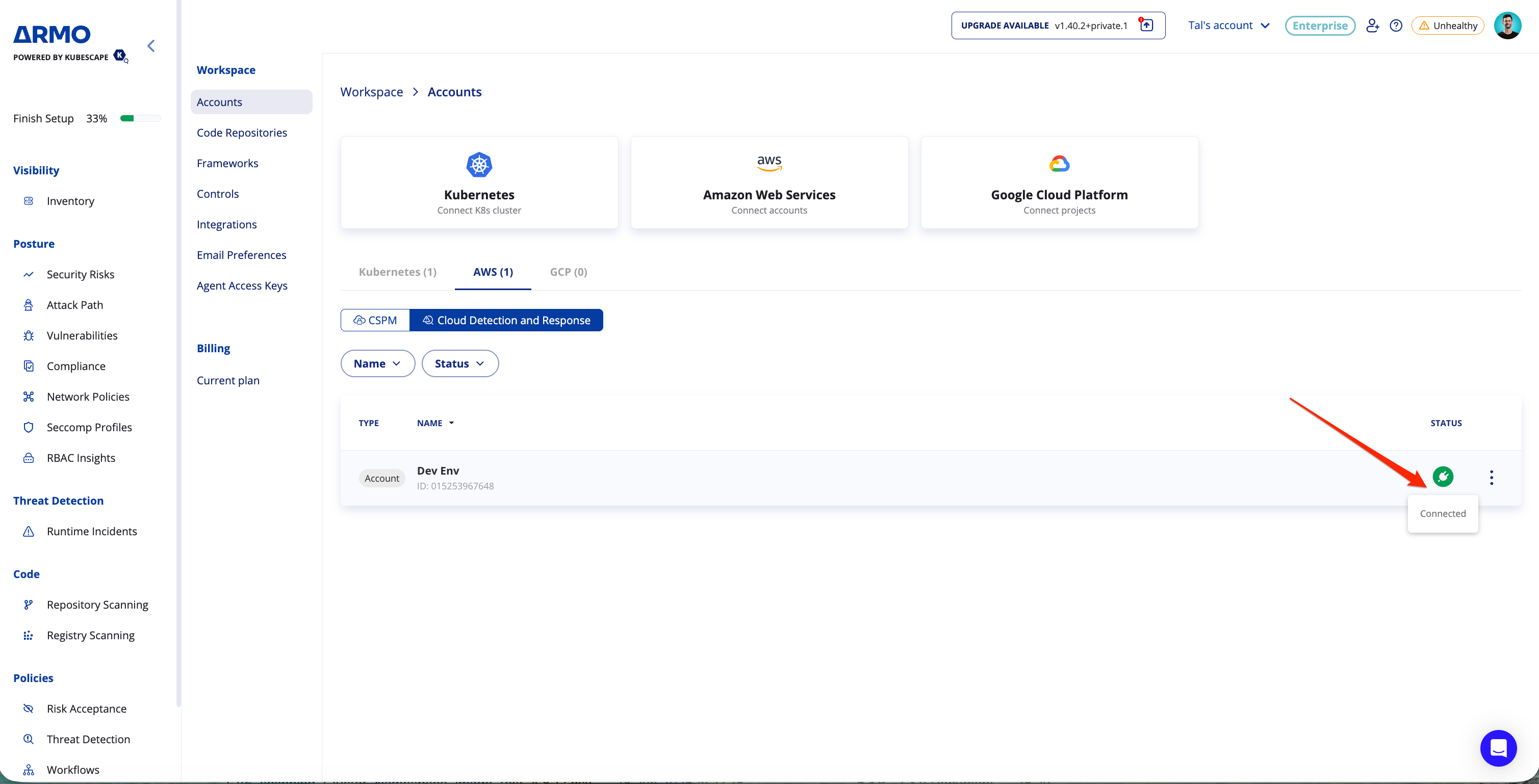
Return to Settings → Accounts → AWS → Cloud Detection and Response.
The AWS account should appear with a Connected status.
AWS Account Scope
AWS CDR can be connected at either the organization level or for a single AWS account.
| Scope | How it works | Recommended for |
|---|---|---|
| Entire Organization | ARMO connects to the AWS organization and enables CDR coverage across the selected organization scope. | Customers who want broader CDR coverage across multiple AWS accounts. |
| Single Account | ARMO connects CDR to one selected AWS account. | Evaluating CDR on a specific account or onboarding accounts individually. |
The onboarding flow is similar for both options. Select Entire Organization for broader coverage across multiple AWS accounts, or Single Account when you want to connect one account at a time.
Connection Status
| Status | Meaning |
|---|---|
| Pending | The account exists in ARMO; the CDR stack has not reported yet. |
| Connected | The deployed CDR components have reported to ARMO at least once. |
| Disconnected | ARMO has received nothing from the CDR components for 12 hours. Check that the CloudFormation stack still exists and that CloudTrail is still delivering logs. A stack that resumes reporting reconnects automatically. |
Permissions Reference
The CloudFormation stack creates the AWS resources required to process CloudTrail logs and send matched alerts to ARMO.
| Resource / Permission | Purpose |
|---|---|
| IAM role and policies | Allow the deployed CDR components to access the required CloudTrail log source and operate within the account. |
| Lambda functions | Process CloudTrail log notifications and evaluate events for matching detections. |
| S3 notification configuration | Trigger processing when new CloudTrail logs are written to the configured S3 location. |
| CloudWatch Logs | Store operational logs for the deployed AWS components. |
| KMS permissions, if applicable | Allow access to encrypted CloudTrail logs when SSE-KMS is used. |
ARMO does not require direct administrative access to your AWS workloads. The stack is used to process CloudTrail events and report matched security alerts.
After Onboarding
Once AWS CDR is connected:
- New CloudTrail events are evaluated continuously.
- Matched detections appear under Runtime Incidents.
- Incidents include the triggering event, the identity involved, and the affected AWS resource.
- Detection rules can be tuned, disabled, or extended under Policies → Threat Detection.
- Workflows can be used to route incidents to alerting, SIEM, or ticketing integrations.
Removing the Integration
To remove AWS CDR:
- In the ARMO Platform, go to Settings → Accounts → AWS.
- Open the menu for the connected AWS account.
- Disable Cloud Detection and Response or disconnect the account.
- In AWS CloudFormation, delete the ARMO CDR stack.
- If you created a dedicated CloudTrail trail only for ARMO CDR, remove it according to your organization's logging policy.
Delete the CloudFormation stack before disconnecting the account in ARMO. Once the account is disconnected, the access key baked into the stack is revoked and any alerts the stack still sends are rejected.
Deleting the CloudFormation stack removes the ARMO CDR resources created by the template. Existing CloudTrail trails or S3 buckets that were not created by the stack should be reviewed separately before deletion.
Troubleshooting
| Issue | Likely Cause | Suggested Fix |
|---|---|---|
| Account remains Pending in ARMO | CloudFormation stack has not completed, failed, or was created in the wrong AWS account or region. | Check the stack status in AWS CloudFormation and confirm that the selected AWS account and region match the ARMO onboarding flow. |
| CloudFormation stack creation fails | Missing AWS permissions, missing IAM capability acknowledgement, or an organization policy blocking resource creation. | Use an AWS identity with the required permissions, acknowledge IAM resource creation, and review the stack failure reason in CloudFormation. |
| No events reaching ARMO | CloudTrail is not enabled in the selected region, management events are disabled, or the trail log location is incorrect. | Verify the CloudTrail configuration, confirm management events are enabled, and make sure the Trail Log Location entered in ARMO is correct. |
| KMS access errors | CloudTrail logs are encrypted with SSE-KMS, but the required key information or permissions are missing. | Confirm the AWS KMS key value and verify that the deployed CDR role has the required decrypt permissions. |
| No incidents appear after connection | No matching activity has occurred, or the relevant detection rules are disabled. | Generate a safe test event, then review Runtime Incidents and Policies → Threat Detection. |
| Stack status is complete but ARMO is not connected | The stack completed but the connection handshake did not finish successfully. | Refresh the ARMO Accounts page, verify the stack outputs/events, and contact ARMO support if the status does not change. |
Updated 7 days ago