
Update the CDR CloudFormation Stack
This guide explains how to update an existing ARMO Cloud Detection & Response CloudFormation stack to a newer version using the AWS CloudFormation console.
When to update the stack
Stack updates are required when ARMO adds new features or capabilities to Cloud Detection & Response that require an updated CloudFormation deployment.
When a new version is available, ARMO will provide the updated image tag to use during the stack update.
Before you begin
Make sure you have:
- Access to the AWS account where the ARMO Cloud Detection & Response stack is deployed
- Permissions to update AWS CloudFormation stacks
- The AWS region where the stack was originally created
- The latest image tag provided by ARMO
Update the CloudFormation stack
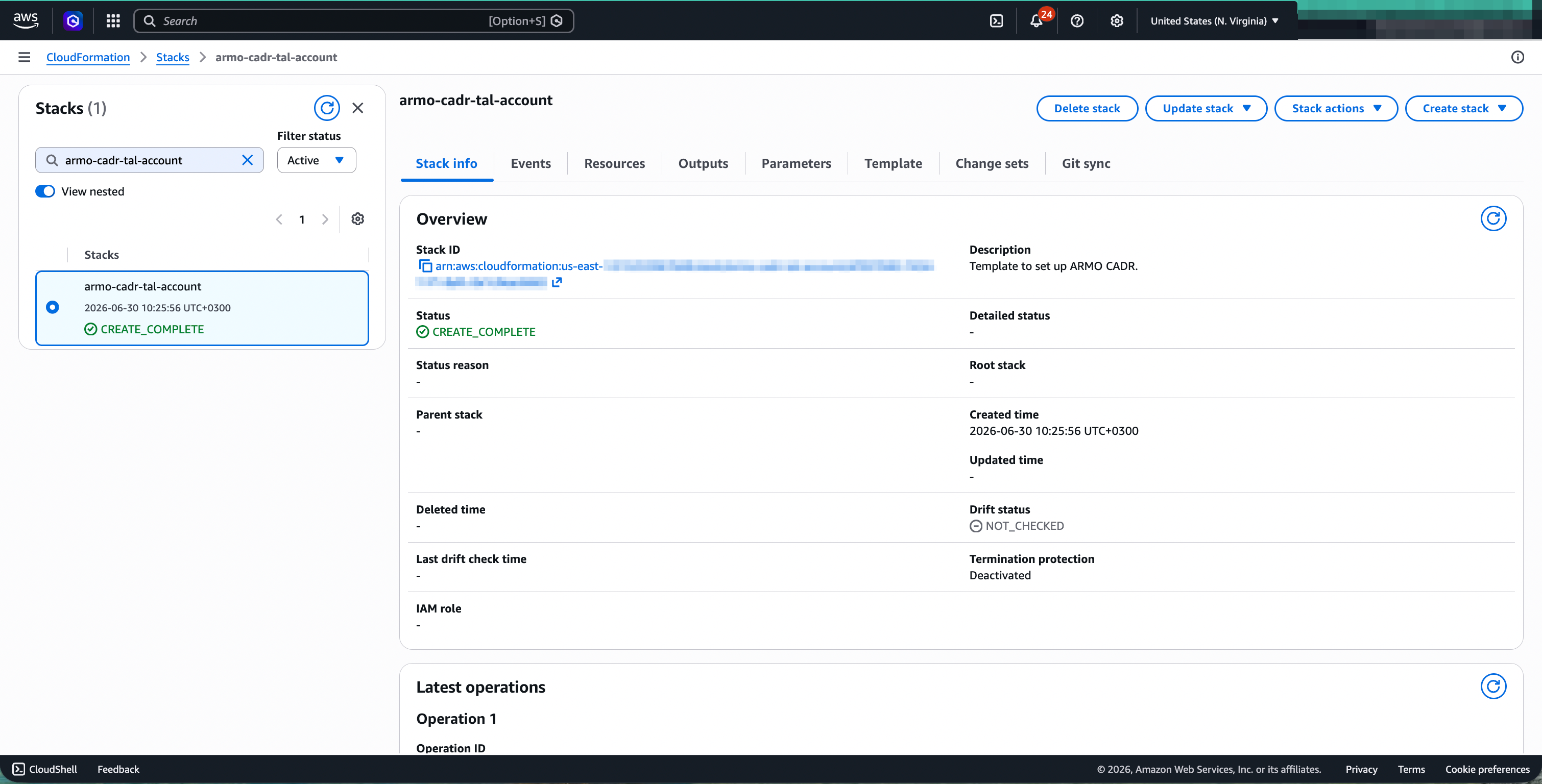
1. Open the CloudFormation stack
- In the AWS console, go to CloudFormation.
- Select Stacks from the left navigation.
- Find and select your ARMO Cloud Detection & Response stack.
The default stack name is usuallyarmo-cadr. If you changed the name during the initial connection, select the stack name you configured.
2. Start the stack update
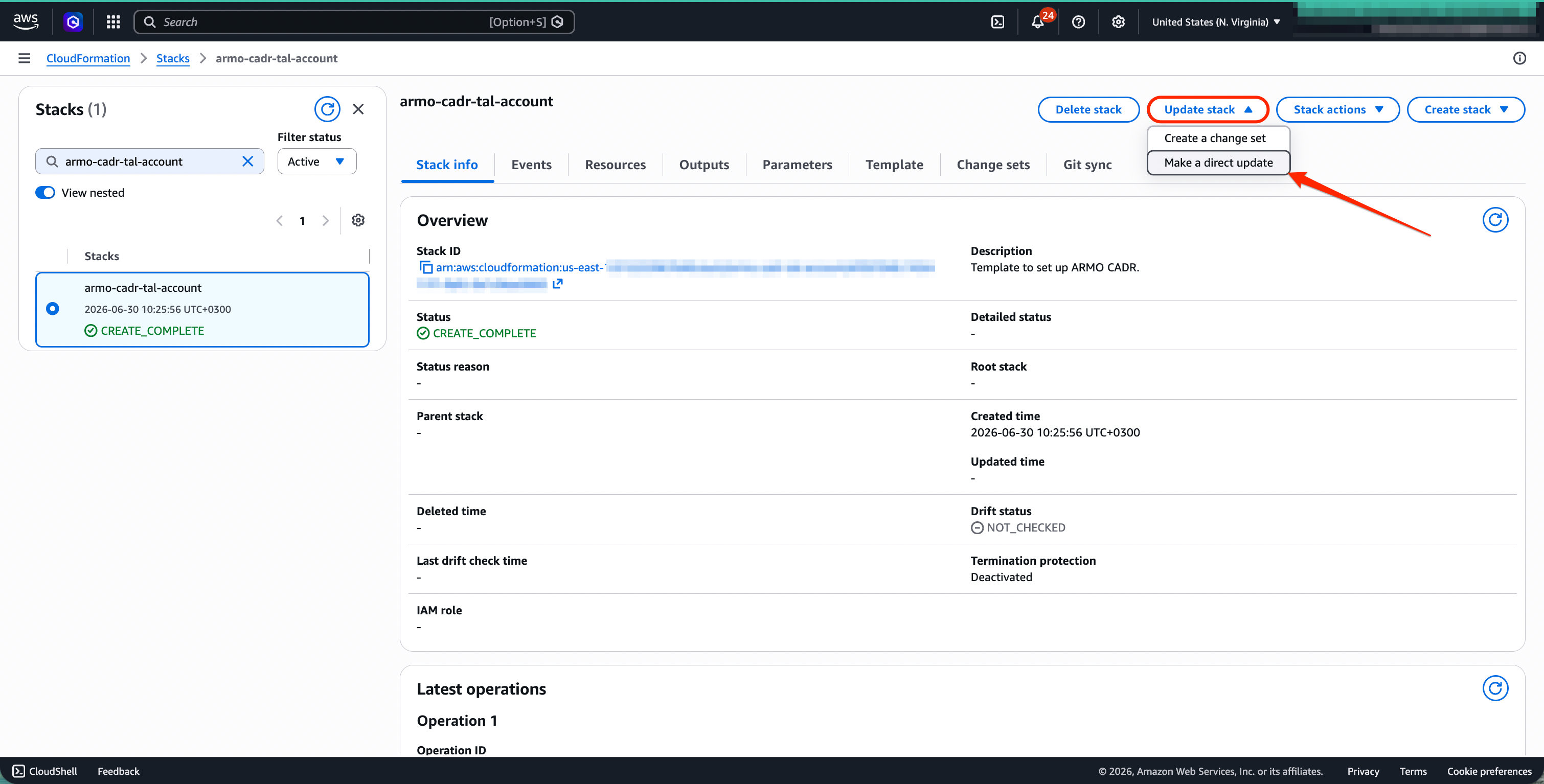
- Click Update stack.
- Select Make a direct update.
3. Use the existing template
In the Prepare template step:
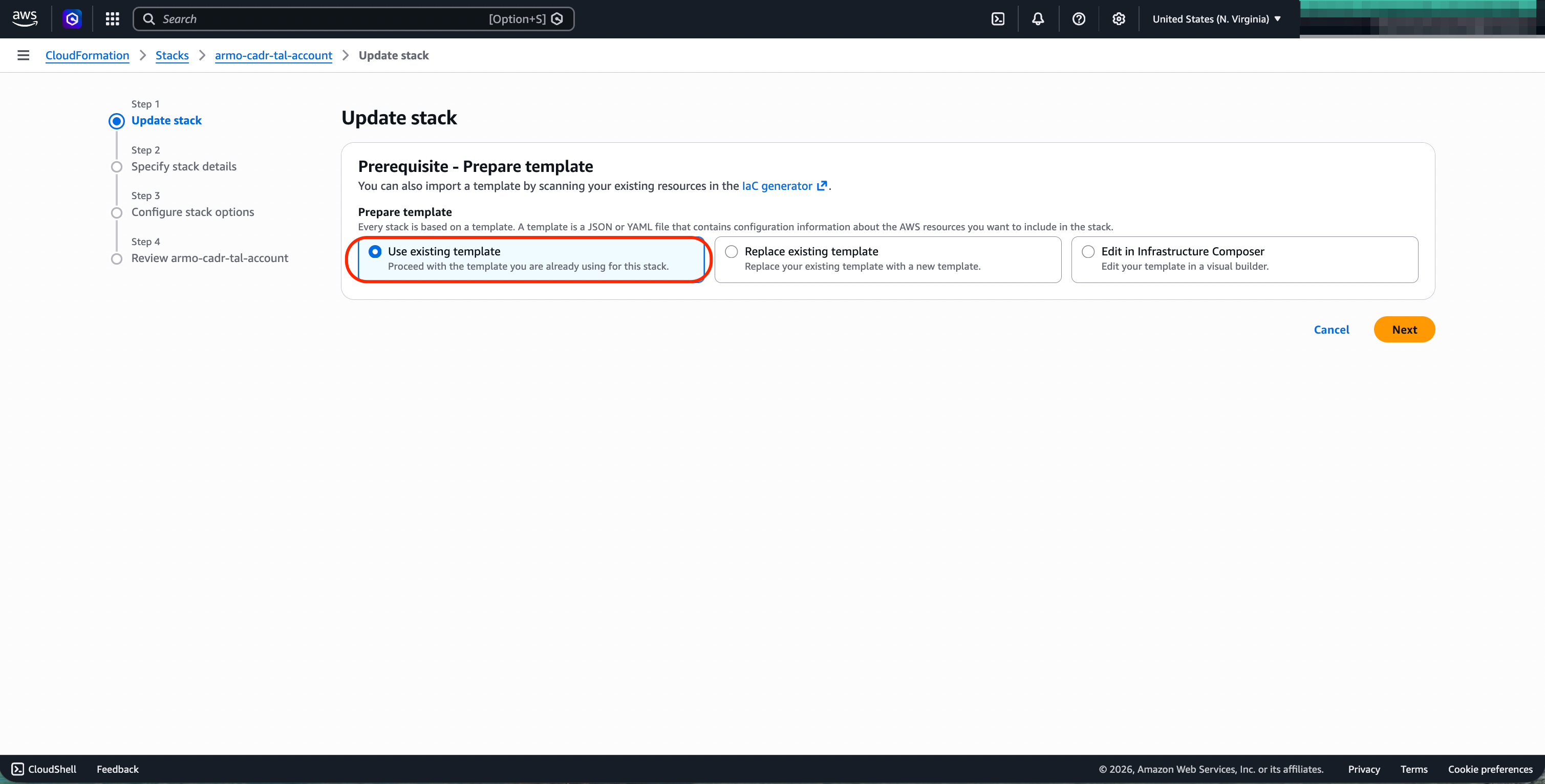
- Select Use existing template.
- Click Next.
The update only requires changing stack parameters. The CloudFormation template itself does not need to be replaced.
4. Update the image parameters
In the Specify stack details step, update the image tag for the following parameters:
| Parameter | Description |
|---|---|
LambdaImageUri | The image URI used by the Cloud Detection & Response Lambda function |
S3NotificationImageUri | The image URI used by the S3 notification configuration function |
Update only the version tag at the end of each image URI.
For example, change:
<account-id>.dkr.ecr.us-east-1.amazonaws.com/cadr:v0.0.17
To:
<account-id>.dkr.ecr.us-east-1.amazonaws.com/cadr:v0.0.23
For S3NotificationImageUri, keep the -notification suffix and update only the version number.
For example, change:
<account-id>.dkr.ecr.us-east-1.amazonaws.com/cadr:v0.0.17-notification
To:
<account-id>.dkr.ecr.us-east-1.amazonaws.com/cadr:v0.0.23-notification
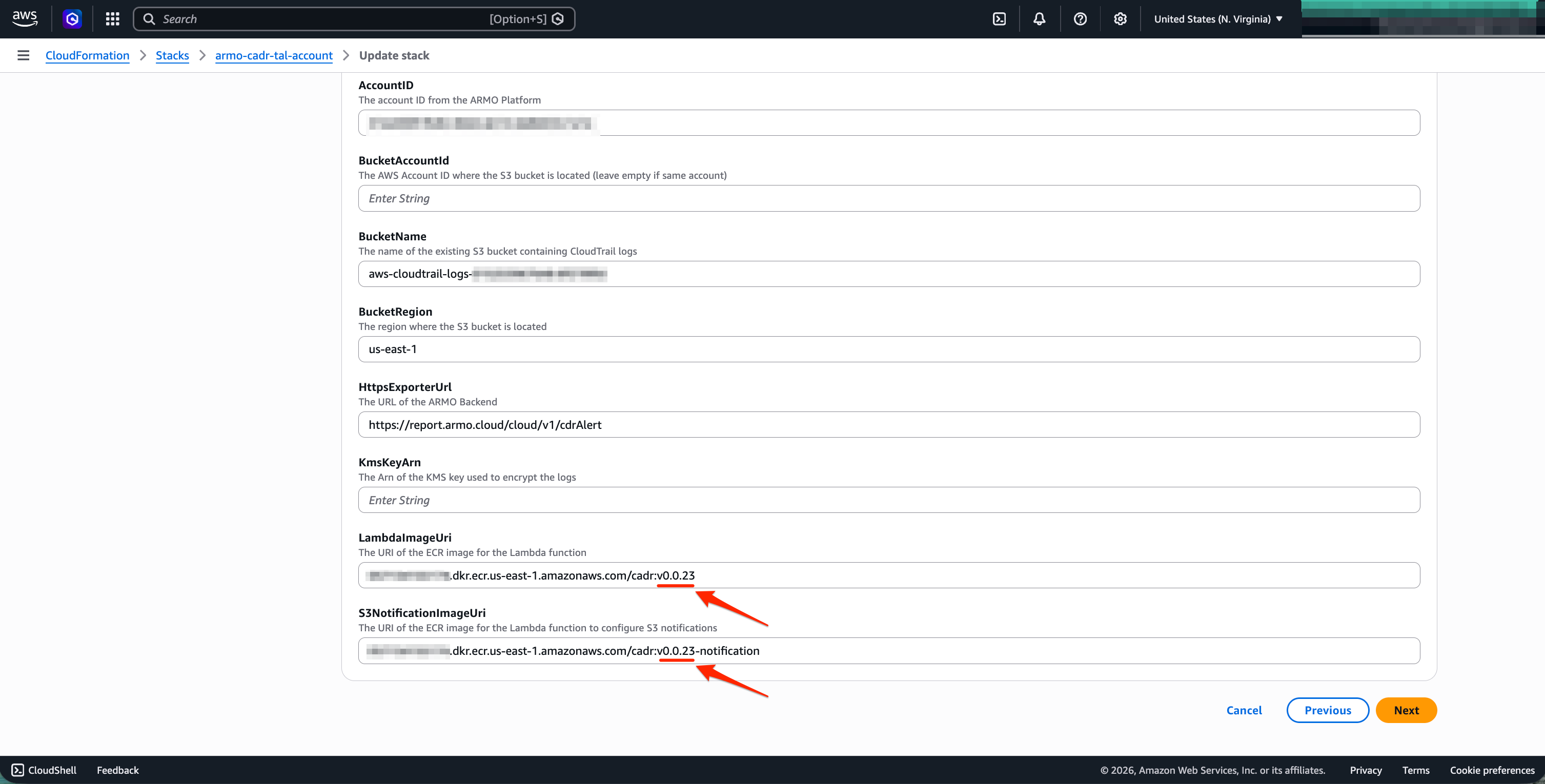
Both parameters must use the same version number.
TheS3NotificationImageUrivalue must keep the-notificationsuffix.
5. Configure stack options
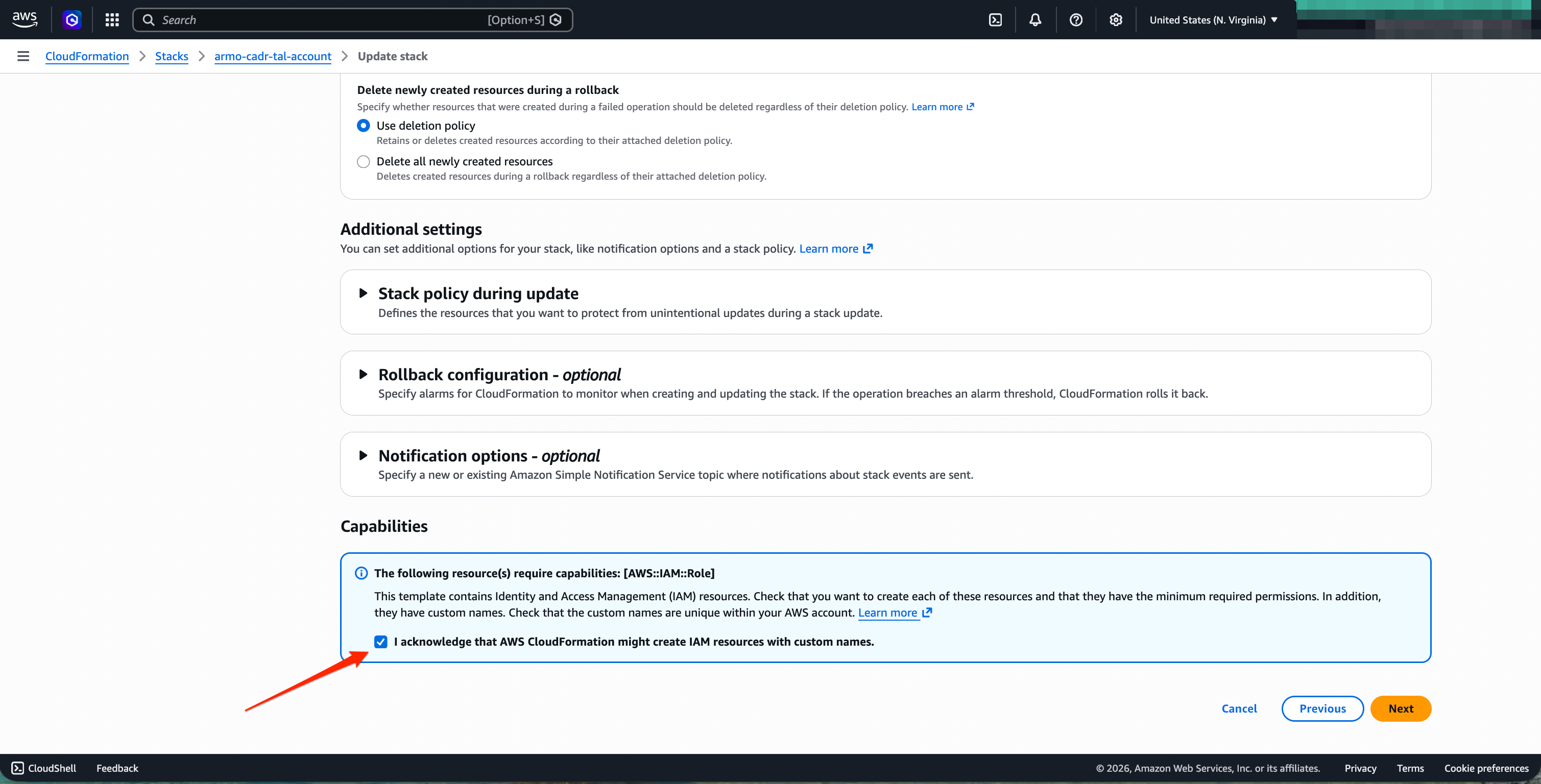
In the Configure stack options step, keep the default settings.
Scroll down to the Capabilities section and select:
I acknowledge that AWS CloudFormation might create IAM resources with custom names.
Click Next.
6. Review the stack update
In the Review stack step, review the stack details and confirm that the updated image URI parameters are correct.
Make sure the following parameters use the updated version provided by ARMO:
LambdaImageUriS3NotificationImageUri
At the bottom of the page, click Submit to apply the stack update.
7. Verify the update
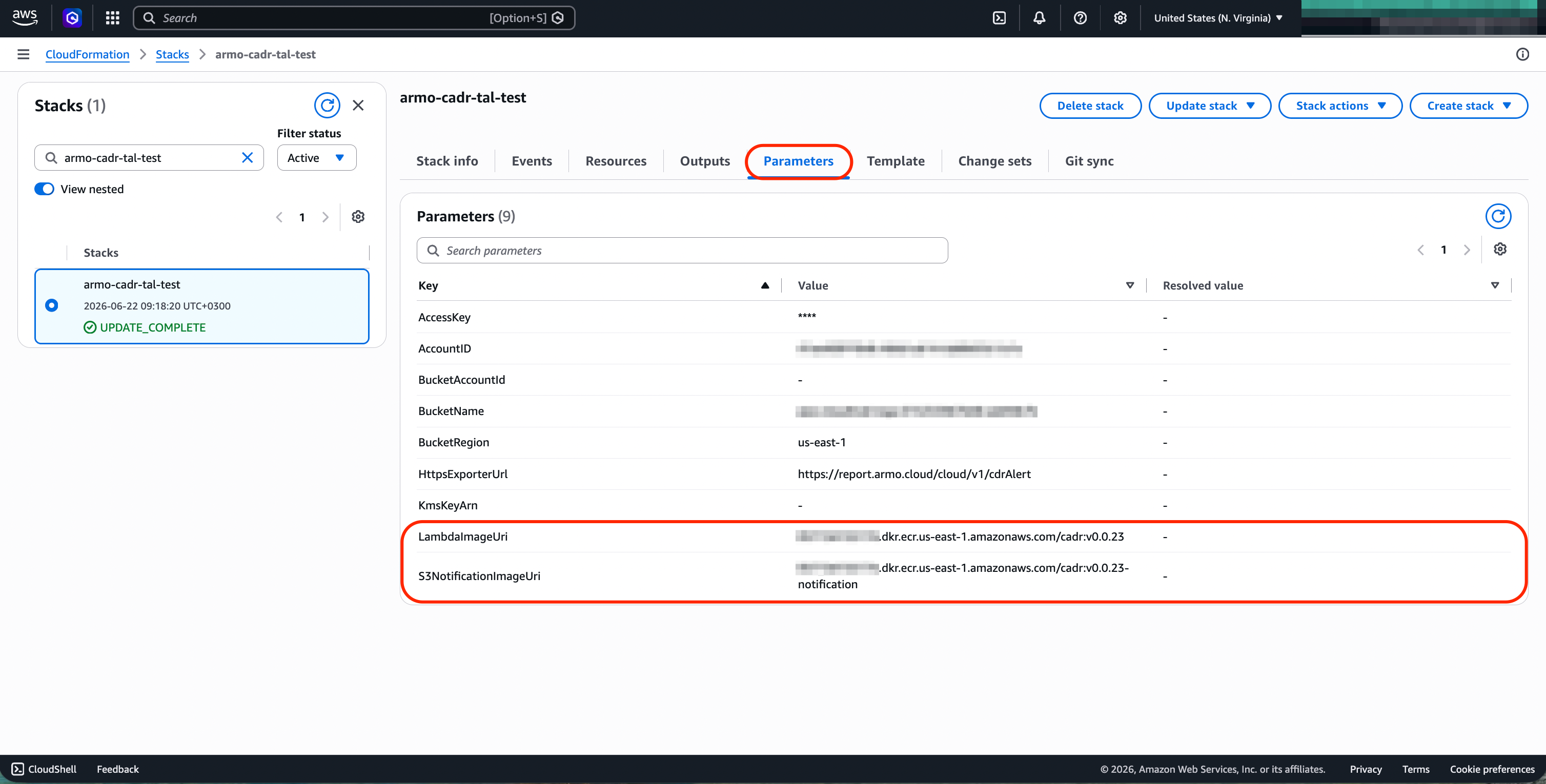
Wait until the stack status changes to: UPDATE_COMPLETE
After the update is complete, open the Parameters tab and verify that the following parameters show the updated version:
LambdaImageUri
S3NotificationImageUri
Result
The ARMO CDR CloudFormation stack is updated. The Lambda functions will use the updated container images on their next invocation.
Updated 21 days ago